

The fastest way to check your motherboard model is to press Windows key + R, type msinfo32, and read the BaseBoard Product line under System Summary. That gives you the model name in under 30 seconds.
If you are shopping for RAM or about to flash a BIOS file, the model name alone is not enough. You also need the exact board revision, and that number does not always show up in software.
Step One: Pull the Model Name From System Information
Open msinfo32 and check the BaseBoard Manufacturer and BaseBoard Product fields. It loads instantly and needs no download.
For the fuller walkthrough on this exact step, see our guide on how to check what motherboard you have without opening the case. This one goes further, into the revision number RAM kits and BIOS files actually care about.
Step Two: Confirm It With One Command Prompt Line
Run wmic baseboard get product,manufacturer in Command Prompt. On newer Windows 11 builds where wmic is being phased out, PowerShell’s Get-WmiObject Win32_BaseBoard pulls the same fields.
Both confirm the model name in about two seconds. Neither reliably returns a board revision, which is the gap that trips people up before a purchase.
Why the Model Name Alone Is Not Enough for RAM or BIOS
Manufacturers ship the same board name across several physical revisions. A B550 board sold as Revision 1.0 can support different max RAM speeds or a different BIOS file than the same board sold later as Revision 1.1.
Flash the wrong BIOS file for your revision and the update can fail to boot. Buy RAM rated for a later revision and it may only run at a lower speed than advertised.
Confirm both the model and revision before you touch firmware, not just the model name from a system summary screen, especially before you open BIOS on Windows 11 to start a flash.
Reading the Revision Number Straight Off the Board
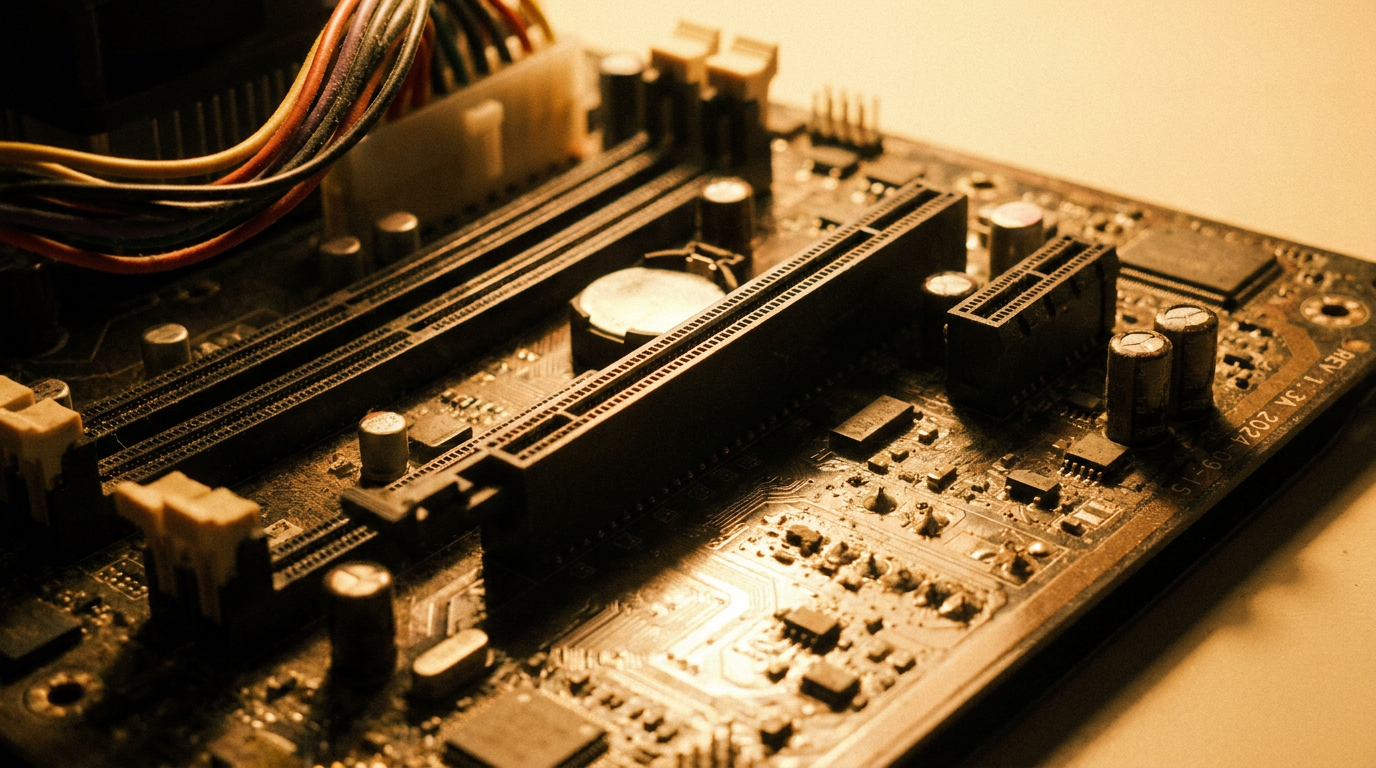
When software will not show a revision, a 15-second look at the physical board settles it. Manufacturers print the revision in small white text near the DIMM slots, the PCIe x16 slot, or the top edge near the rear I/O panel.
Look for text like “REV 1.01” or “REV X.X” printed directly on the fiberglass, not a sticker. If the side panel is already open for any other reason, glance at that text before closing it back up.
Snap a photo of it on your phone. Manufacturer support pages and a board’s QVL (Qualified Vendor List) for RAM compatibility ask for the exact revision, and a saved photo beats climbing back under the desk later.
When the Case Stays Closed Entirely
Prebuilt towers often report a chassis model number instead of a board name, which is normal OEM behavior, not worth chasing with a screwdriver. For those systems, the service tag matters more than a revision.
For a custom build, the 15-second silkscreen check before ordering RAM or a BIOS update is the difference between a compatible upgrade and a returned box. If storage is next on your list, running a quick check on your SSD’s health before you spend elsewhere takes about the same 60 seconds.
FAQ
Do I need to open my case just to find the model name?
No. msinfo32, wmic, or PowerShell all return the model name without opening anything. The revision is the only piece that sometimes needs a physical look.
Where exactly is the revision number printed on the board?
Most commonly near the DIMM slots, along the top edge by the rear I/O ports, or near the main PCIe x16 slot, in small white or silver text printed directly on the PCB.
Does the revision number actually change RAM compatibility?
Yes, on many boards. Different revisions of the same model can carry different memory support or a revised QVL, which is why manufacturers list revision-specific RAM kits on their support pages.