

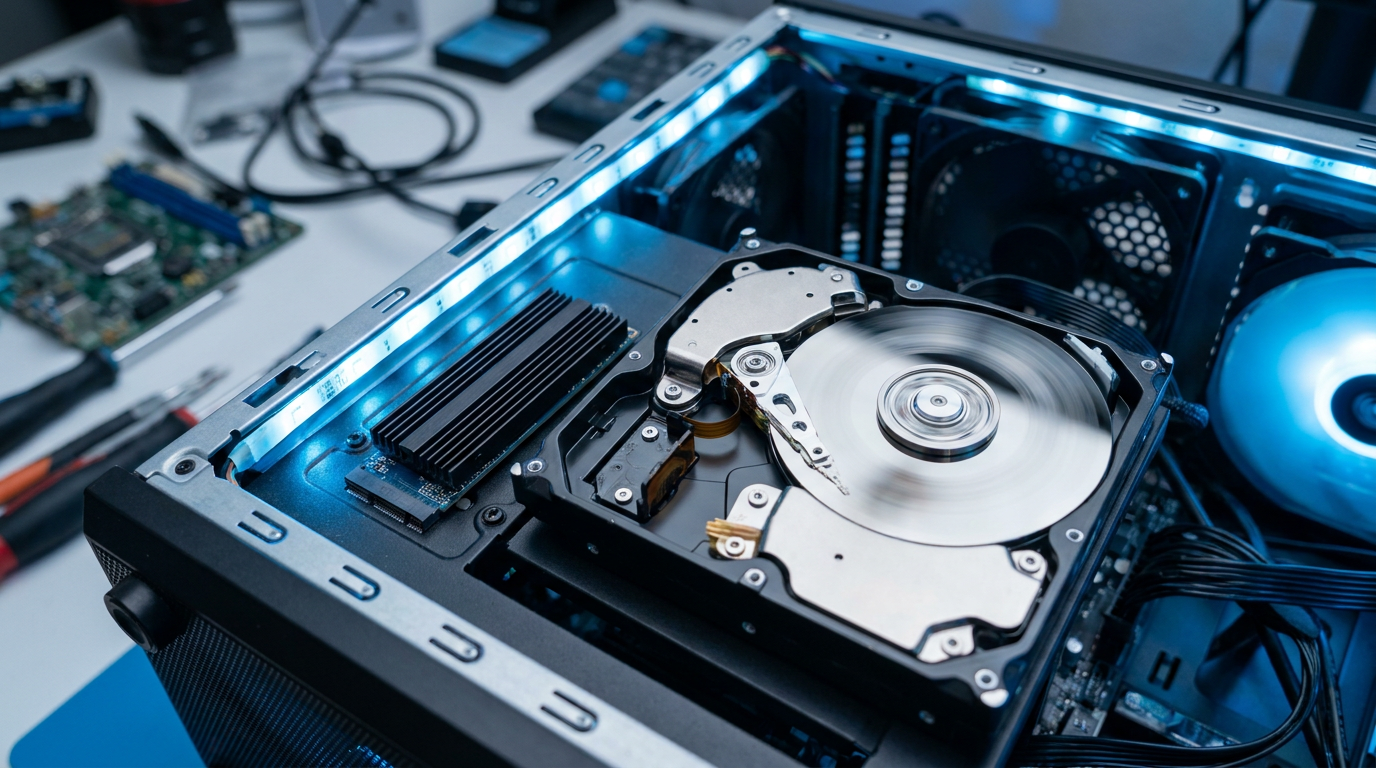
The fastest way to check if your drive is an SSD or HDD is Windows’ built-in Optimize Drives tool, which lists the exact media type next to every drive letter on your PC. That single screen matters most when you inherited a machine or bought one used, since nobody handed you a spec sheet. Once you know which type you have, you know which maintenance habits actually help it and which ones waste your time.
Check Drive Type With the Optimize Drives Tool
Type “defrag” into the Start menu search bar and open Optimize Drives, the tool Windows used to call Disk Defragmenter. Every drive letter on your system shows up in a list, with a Media Type column reading either “Solid state drive” or “Hard disk drive.”
This is the cleanest answer because Windows already tested the drive to decide how to schedule its own maintenance. You are reading the operating system’s own classification, not guessing from noise or feel.
Confirm It With PowerShell
Open PowerShell as administrator and run Get-PhysicalDisk. The output lists every physical drive with a MediaType column showing SSD, HDD, or occasionally “Unspecified” on older or virtualized setups. If Optimize Drives and PowerShell agree, you have a confirmed answer.
Look at Task Manager’s Performance Tab
Open Task Manager, click the Performance tab, and look at the left-hand list. Each entry labeled Disk 0, Disk 1, and so on shows “SSD” or “HDD” directly beneath the drive letter, next to active time and transfer speed graphs.
What a Used or Inherited PC Often Hides
Older prebuilt towers and refurbished office PCs frequently pair a small SSD as the boot drive on C: with a much larger HDD tucked in as secondary storage on D: or E:. Checking only C: and assuming the whole machine matches is the most common mistake buyers make.
Run any of the methods above against every drive letter separately. A mixed setup changes how you treat each drive, not just what you call it.
Why the Drive Type Changes What You Do Next
If your drive comes back as an SSD, skip manual defragmentation entirely. Windows already switches SSDs to a TRIM-based optimization pass instead, and old-school defragging adds wear for no real benefit. Your next move should be checking that SSD’s health on Windows 11, since drive type alone tells you nothing about remaining lifespan.
If it comes back as an HDD, traditional defragmentation still helps, and you will notice slower boot and load times as a baseline fact of the hardware, not a fault. Either way, once you have identified an SSD it is worth confirming it is actually hitting the speed it should, since a correctly identified SSD can still underperform its rated numbers.
Planning to replace an aging HDD instead of just diagnosing it? Read up on NVMe vs SSD differences first, so the replacement you buy actually fits your motherboard’s available slots and delivers the upgrade you expect.
Frequently Asked Questions
Can I tell if a drive is SSD or HDD just by how the PC sounds? Usually yes as a rough signal. An HDD makes faint clicking or spinning noise under load, while an SSD is silent since it has no moving parts. Always confirm with Optimize Drives or PowerShell rather than relying on sound alone.
Does File Explorer show whether a drive is SSD or HDD? Not directly. File Explorer shows capacity and free space but no media type column. Use the Optimize Drives tool, Task Manager’s Performance tab, or PowerShell’s Get-PhysicalDisk command instead.
Why does PowerShell show my drive as “Unspecified” instead of SSD or HDD? This happens on some external enclosures, RAID controllers, or virtual machines where the true media type is not passed through to Windows. Check the drive in Optimize Drives as a second opinion, or check the manufacturer’s own utility if one exists.