

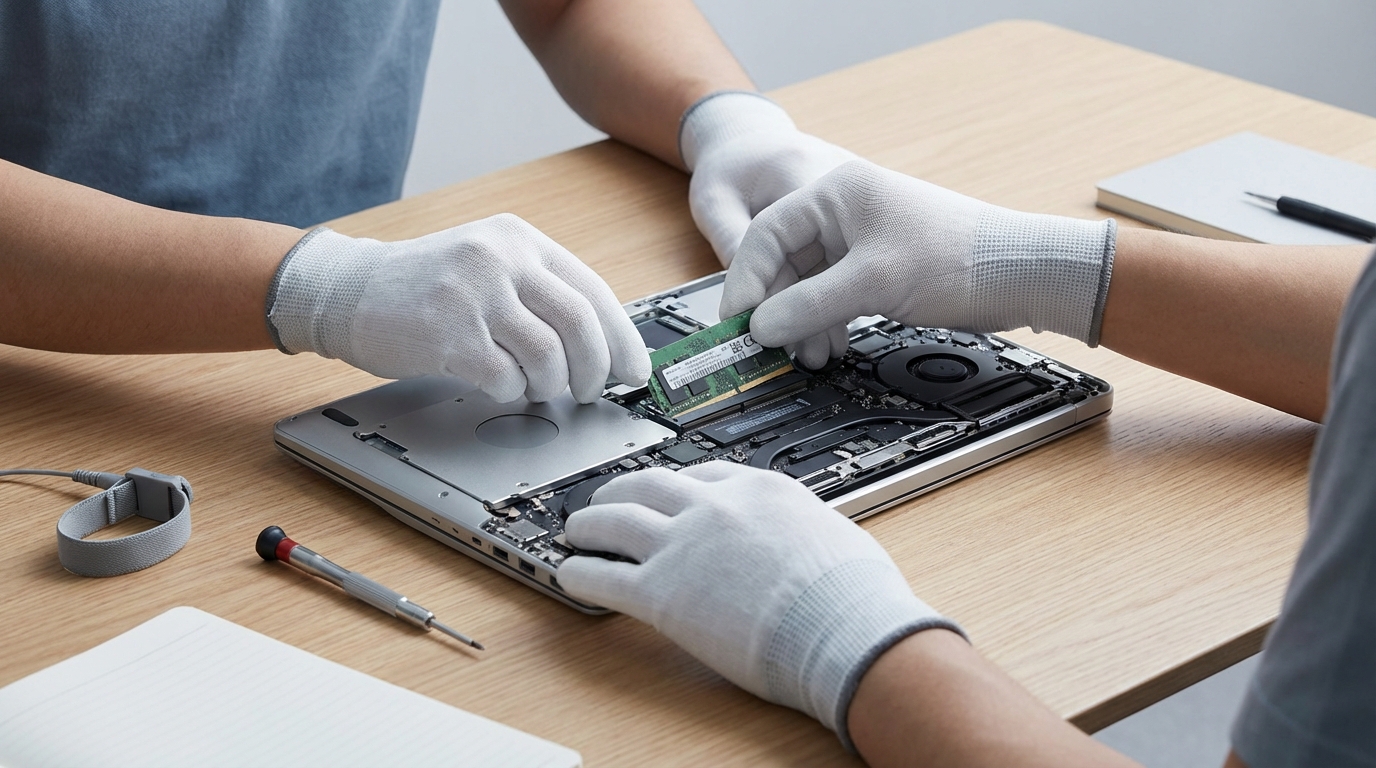
To upgrade laptop RAM, power down completely, remove the back panel, locate the SO-DIMM slots, seat the new modules at a 45-degree angle until they click flat, and reassemble. The full process takes 15-20 minutes on most laptops and costs $30-80 depending on capacity. The hardest part is confirming your laptop has upgradeable RAM before you buy anything.
A large share of 2024-2026 laptops use soldered LPDDR5X, which cannot be upgraded. Checking this before purchase saves you a wasted trip. Here is how to verify compatibility and execute the swap correctly.
Check If Your Laptop RAM Is Upgradeable
Open CPU-Z (free, cpu-z.com) and click the Memory tab. If it shows “SPD” slot data with a removable module count, you have slots. If SPD slots show as empty or the memory type reads “LPDDR5X on-die,” the RAM is soldered and cannot be changed.
Cross-check with the manufacturer’s service manual. Dell, Lenovo, and HP publish these publicly. Search “[your model] service manual PDF” and look for the memory section. The manual will confirm whether slots exist and the maximum supported capacity. Most upgradeable laptops accept 16GB or 32GB per slot via SO-DIMM DDR4 or SO-DIMM DDR5 modules.
If you are unsure whether more RAM is actually necessary for your workload, the guide on whether 8GB RAM is enough in 2026 covers real-world test data by task type before you spend anything.
What RAM to Buy
Match speed and generation exactly. If your laptop runs DDR4-3200, buy DDR4-3200 SO-DIMMs. Installing DDR5 in a DDR4 slot is physically impossible (the notch position differs), but buying DDR4-2666 for a DDR4-3200 system will run at the slower speed. Brands like Crucial, Kingston, and G.Skill Ripjaws are safe choices; Crucial’s compatibility tool at crucial.com lets you enter your exact model for a confirmed match.
On capacity: going from 8GB to 16GB produces a measurable difference in multitasking and Chrome-heavy workflows. The 8GB vs 16GB RAM performance comparison shows benchmark deltas across real workloads if you want numbers before committing. Going beyond 32GB is only justified for video editing, large VM environments, or running local AI models.
Step-by-Step RAM Upgrade Process
- Shut down fully. Sleep and hibernate leave voltage on components.
- Unplug the charger and hold the power button for 5 seconds to discharge residual current.
- Remove the back panel screws. Many laptops hide one screw under a rubber foot or the battery latch. Use a PH00 or PH000 Phillips screwdriver.
- Pry the panel with a plastic spudger starting at a corner. Metal tools scratch the chassis and can snap retention clips.
- Locate the SO-DIMM slots. They sit near the CPU heat pipe on most designs. RAM modules are held by two metal clips on each side.
- To remove the old module: press both clips outward simultaneously. The module will pop up to a 45-degree angle. Pull it straight out.
- Insert the new module at the same 45-degree angle, gold contacts facing the slot. Press down until both clips snap closed. You will hear a click.
- Replace the back panel, hand-tighten the screws, and power on.
- Open Task Manager (Ctrl+Shift+Esc), click the Performance tab, then Memory. Confirm the new total is recognized.
In our testing, the most common failure is incomplete seating. If the system does not POST (blank screen on boot), reseat the modules before assuming a compatibility issue.
After the Upgrade: Check Dual-Channel
If you installed two modules, verify they are running in dual-channel mode. In CPU-Z under Memory, the Channel field should read “Dual.” Dual-channel doubles effective memory bandwidth, which matters for integrated graphics performance and CPU-limited tasks. If it reads “Single,” the modules may be in non-matching slots. Check your service manual for the correct paired-slot configuration. This detail is also useful context for the broader laptop specs buying guide if you are evaluating a new machine instead of upgrading an existing one.
Frequently Asked Questions
Can every laptop RAM be upgraded?
No. A large number of laptops released since 2023 use soldered LPDDR5X RAM that is permanently attached to the motherboard. Ultrabooks, many MacBooks, and thin-and-light designs in the under-$800 range are frequently soldered. Confirm via CPU-Z or the manufacturer service manual before purchasing any modules.
What happens if I install the wrong RAM speed?
Your system will either refuse to POST or default to a lower speed. DDR4 and DDR5 are physically incompatible, so wrong-generation modules will not fit. Mismatched DDR4 speeds (e.g., 3200 vs 2666) will run at the slower rate. No permanent damage occurs, but you will leave performance on the table.
Do I need to reinstall Windows after a RAM upgrade?
No. A RAM upgrade requires no OS reinstall and no driver changes. Windows detects the new capacity automatically on the next boot. The only post-upgrade action is verifying the total shows correctly in Task Manager or System Information and confirming dual-channel mode is active if you installed two sticks.