

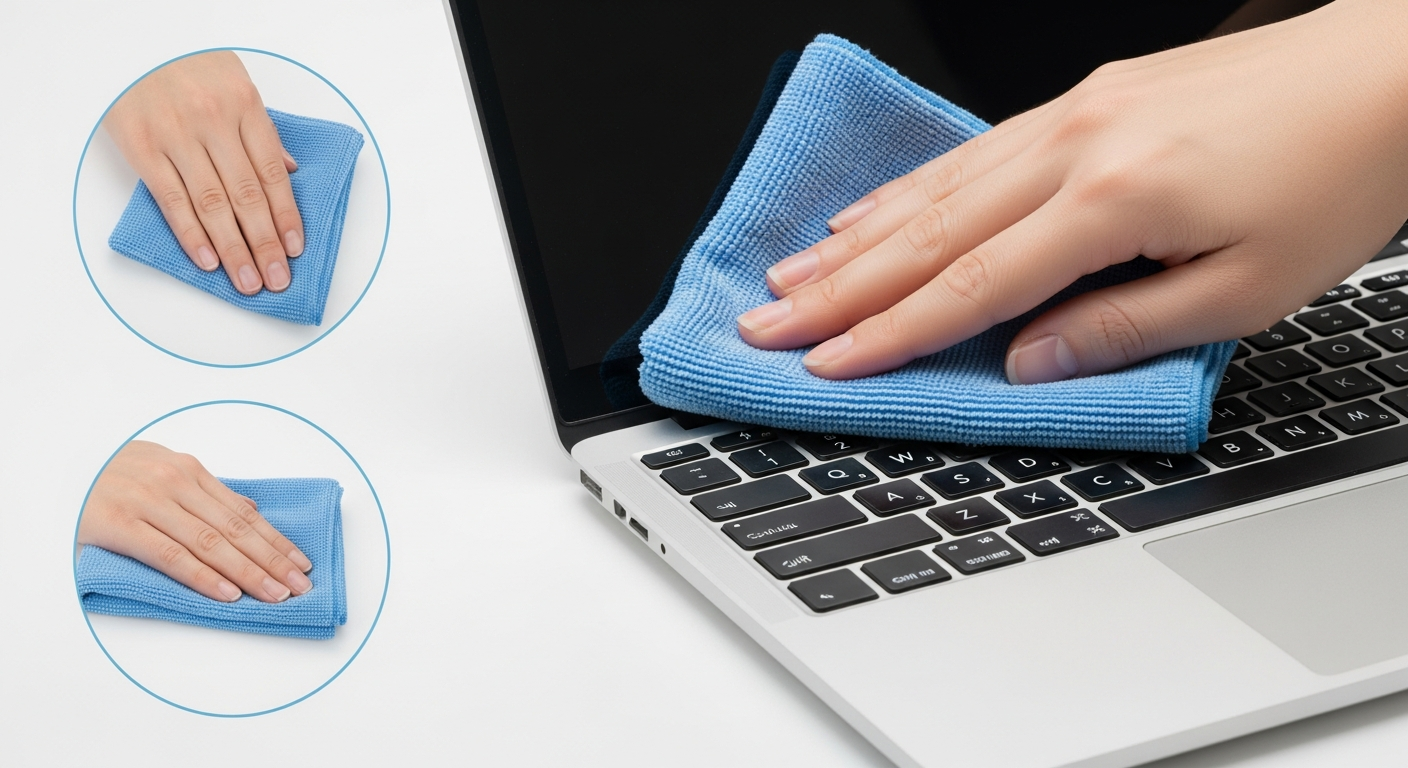
To clean a laptop screen safely, power it off, then wipe gently with a dry microfiber cloth in circular motions. For persistent smudges, dampen the cloth lightly with distilled water or a 50/50 mix of distilled water and 70% isopropyl alcohol. Never spray liquid directly onto the panel, and never use paper towels, ammonia-based products, or any cleaner not formulated for display surfaces.
Screens pick up oils, dust, and fingerprints constantly, and the temptation is to grab whatever cleaning spray is nearby. That impulse has killed more than a few anti-glare and OLED coatings. The material and method you choose matters more than the effort you apply.
If your machine also runs hot, you may want to clean your laptop fan at the same time, since dust buildup affects both the display area and internal airflow. And while you have the machine open on your desk, this is a good moment to fix laptop overheating issues before they shorten component life.
What you actually need before you start
You do not need a specialty kit. Three items cover the full job for most laptops.
A high-quality microfiber cloth is the single most important tool. The weave is tight enough to trap particulates rather than drag them across the glass, which is how scratches happen. Use a cloth sized at least 30 x 30 cm so you have enough surface to fold and refold as you work, always moving to a clean section.
Distilled water is the safest liquid option. Tap water contains minerals that leave white residue as it evaporates, particularly visible on dark panels. A standard 500 ml bottle from any pharmacy costs under a dollar and lasts months.
For screens with heavier grease or fingerprint buildup, a solution of 1 part 70% isopropyl alcohol to 1 part distilled water works well. The alcohol concentration matters: solutions below 50% leave water behind, and solutions above 90% evaporate too fast to do any cleaning work. The 70% range is the practical sweet spot.
Optional but useful: a second dry microfiber cloth for a final buff pass, and a can of compressed air aimed at the bezel edges where dust collects in the gap between screen and frame.
What not to use on a laptop screen
This is where most screen damage originates. The wrong cleaner does not produce immediate, obvious harm. It degrades the anti-reflective coating over weeks and months, and by the time you notice the screen looks foggy or has a rainbow sheen, the coating is gone permanently.
Paper towels and tissues seem harmless, but their fibers are coarser than microfiber at the microscopic level. Used repeatedly, they create fine surface scratches that diffuse light and reduce clarity. Kitchen roll is not a substitute.
Window cleaners such as Windex contain ammonia, which is specifically corrosive to the anti-reflective layers that manufacturers apply to both matte and glossy panels. The same applies to multi-surface household sprays, bleach solutions, and acetone-based products.
Excess liquid is its own risk category. Any moisture that runs down the screen and reaches the bottom bezel can wick through the gap into the display assembly, causing internal corrosion or short circuits. The cloth should be damp, not wet. If you squeeze it and liquid comes out, it is too wet.
For users who might also be troubleshooting performance issues, the same careful approach applies to internal maintenance. If your machine has slowed down, the guide on how to fix a slow laptop covers the most common causes without requiring disassembly.
Cleaning an LCD screen vs a touchscreen or OLED panel
Not all screens respond identically to the same technique, and the differences are worth understanding before you start.
Standard LCD panels with anti-glare matte coatings are the most forgiving. The matte texture hides minor residue better, and the coating, while not indestructible, tolerates gentle wiping well. Use the dry microfiber method first. If smudges remain after 2 to 3 passes, apply a small amount of distilled water to the cloth and repeat. This remains the current recommendation from most display manufacturers as of 2026.
Touchscreens have an oleophobic layer designed to resist fingerprints. This coating is intentionally thin and wears over time. Clean them with distilled water only unless the manufacturer explicitly approves isopropyl alcohol for their specific model. Alcohol strips oleophobic coatings faster than it strips standard anti-reflective treatments.
OLED panels are the most sensitive of the three. The organic compounds in the display sit closer to the surface than in a traditional LCD backlit panel, and the anti-reflective treatment on OLED screens is particularly susceptible to solvent damage. Use only a dry microfiber cloth on OLED unless you have confirmed the panel manufacturer approves liquid cleaning. When in doubt, dry only.
To identify your panel type, check the laptop’s spec sheet or look up the model number in the manufacturer’s support database. Dell, for instance, lists display specifications including coating type in the product documentation for every current and recent Inspiron, XPS, and Latitude line.
Removing fingerprints and stubborn smudges
Fingerprints are a combination of skin oils, water, and trace salts. The oil component is what makes them cling to glass and plastics, and plain water alone breaks down the oil poorly. That is why a distilled water and isopropyl alcohol mix outperforms water alone for fingerprint removal.
Apply the solution to the microfiber cloth, not the screen. Start at the top of the display and work downward in overlapping horizontal strokes. Do not scrub in small tight circles on a single spot, as that concentrates pressure and increases the chance of leaving a polished area that catches light differently than the surrounding surface.
For a smudge that persists after 2 passes, let the cleaned area dry completely, then examine the screen at a low angle under a lamp. What looks like a remaining smudge is often dried residue from tap water or an unclean cloth. Rewipe with a cloth that you know is clean and dry.
If the smudge is on the inside of the screen, no amount of external cleaning will remove it. Internal contamination means the display assembly has been breached by liquid or the panel itself is failing. At that point, a screen replacement conversation is the right next step.
Cleaning the bezel and keyboard while you are at it
The bezel, the plastic or aluminum frame surrounding the display, collects the same oils and dust as the screen but tolerates cleaning products better than the panel itself. A microfiber cloth dampened with the isopropyl alcohol solution works well here. Wipe from the outer edge inward so you are not dragging debris toward the screen surface.
The hinge gap, where the display meets the base when closed, traps lint and skin cells that build up over months. Compressed air directed into this gap dislodges debris that wiping cannot reach. Hold the can upright and use short 1 to 2 second bursts from about 15 cm away.
The keyboard area benefits from compressed air between the keycaps before any damp cleaning. Moisture under keycaps can cause sticking and corrosion on the switch contacts below. Tilt the laptop at 45 to 75 degrees when using compressed air on the keyboard so gravity helps carry the loosened material out rather than deeper into the deck.
How often to clean your laptop screen
For a machine used daily in a typical office or home environment, a dry microfiber wipe once per week keeps the screen clear without any risk to coatings. A wet clean with distilled water is appropriate once per month, or whenever visible smearing accumulates that the dry cloth cannot remove.
Environments with higher contamination need more frequent attention. Kitchens and workshops introduce grease and fine particulates that embed in the anti-glare texture faster than standard office dust. Travel machines pick up more handling and therefore more fingerprint oils. In those contexts, a dry wipe every 2 to 3 days and a wet clean every 2 weeks is reasonable.
Never clean a screen that is warm from recent use. The heat opens pores in the coating slightly, and cleaning while warm increases the chance of streaking. Power off or put the machine to sleep and let it sit for 5 minutes before starting.
Safe vs unsafe cleaners: a reference table
| Cleaner | Safe to use? | Best for | Risk |
|---|---|---|---|
| Dry microfiber cloth | Yes, always | Dust, light smudges, daily maintenance | None when cloth is clean |
| Distilled water on microfiber | Yes | Fingerprints, most panels including OLED | Streaking if cloth is too wet |
| 50/50 distilled water + 70% isopropyl alcohol | Yes, for LCD and most matte panels | Grease, persistent smudges | Can degrade oleophobic coating on touchscreens over time |
| Screen wipes (pre-moistened, alcohol-free) | Yes, check ingredients | On-the-go cleaning | Varies by brand; avoid any with surfactants |
| Tap water | Marginal | Emergency use only | Mineral deposits, white residue after drying |
| Window cleaner (e.g., Windex) | No | Windows, not screens | Ammonia destroys anti-reflective coating |
| Paper towels or tissues | No | Nothing on screens | Micro-scratches accumulate over multiple uses |
| Bleach or multi-surface sprays | No | Hard surfaces only | Chemical damage to panel and coating is permanent |
Clean your laptop screen in 6 steps
- Power off the laptop and unplug it. A dark screen reveals smudges and dust you cannot see against a lit background, and there is no electrical risk from any incidental moisture.
- Remove loose dust first. Use a clean, dry microfiber cloth or a single short burst of compressed air from 15 cm to lift dust before wiping. Dragging a dry cloth across a dusty screen drags abrasive particles with it.
- Wipe with a dry cloth using light pressure. Work from top to bottom in horizontal strokes. For most maintenance cleans, this step alone is sufficient.
- Apply liquid sparingly if needed. Dampen a fresh section of the cloth with distilled water, or the 50/50 isopropyl alcohol solution for grease. The cloth should feel barely damp, not wet enough to drip.
- Wipe the damp section, then follow immediately with a dry pass. Use a fresh dry section of the same cloth, or a second cloth, to absorb any remaining moisture before it has time to pool at the bezel edge.
- Inspect at a low angle under a lamp. Hold the laptop up at a shallow angle to catch any streaks or residue. Rebuff with the dry cloth until the surface is uniform.
Frequently asked questions
Can I use rubbing alcohol to clean my laptop screen?
Yes, but only when diluted. A 50/50 mix of 70% isopropyl alcohol and distilled water is safe for most LCD panels and matte-coated screens. Undiluted alcohol or concentrations above 70% evaporate too quickly and can stress certain coatings. Avoid alcohol entirely on OLED panels unless your manufacturer specifically approves it.
What is the best thing to clean a laptop screen with?
A dry microfiber cloth handles the majority of cleaning tasks without any risk. For fingerprints and grease, dampen the cloth with distilled water. The combination of a quality microfiber cloth and distilled water outperforms most branded screen-cleaning kits, which frequently contain surfactants that leave their own residue.
Why does my screen look streaky after cleaning?
Streaks almost always come from one of three sources: the cloth was too wet, leaving water film behind; the cloth was already contaminated with household cleaning products from a previous use; or tap water was used instead of distilled water, leaving mineral deposits as it dried. Use a clean, dry microfiber cloth for a final buff pass to eliminate streaks.
Can I clean the inside of my laptop screen?
No. Internal contamination, dust or liquid between the display layers, requires professional disassembly. Attempting to clean the inside of the screen yourself voids warranties and risks permanent panel damage. If you see spots that do not move when you wipe the outside, the issue is internal and needs a repair assessment.
How do I clean a touchscreen laptop without damaging the oleophobic coating?
Use only a dry microfiber cloth or a cloth dampened with distilled water. The oleophobic coating on touchscreen panels is thinner than most users assume, and repeated contact with isopropyl alcohol strips it noticeably faster than it strips standard matte coatings. Once the oleophobic layer is gone, fingerprints appear more visibly and the screen feels stickier to the touch.
A clean screen takes less than 5 minutes and extends the useful life of the display coating by years. Keep a dedicated microfiber cloth in your bag and the job stays trivial. For more maintenance guides covering the full machine, browse the DellOne2One laptop care library.