

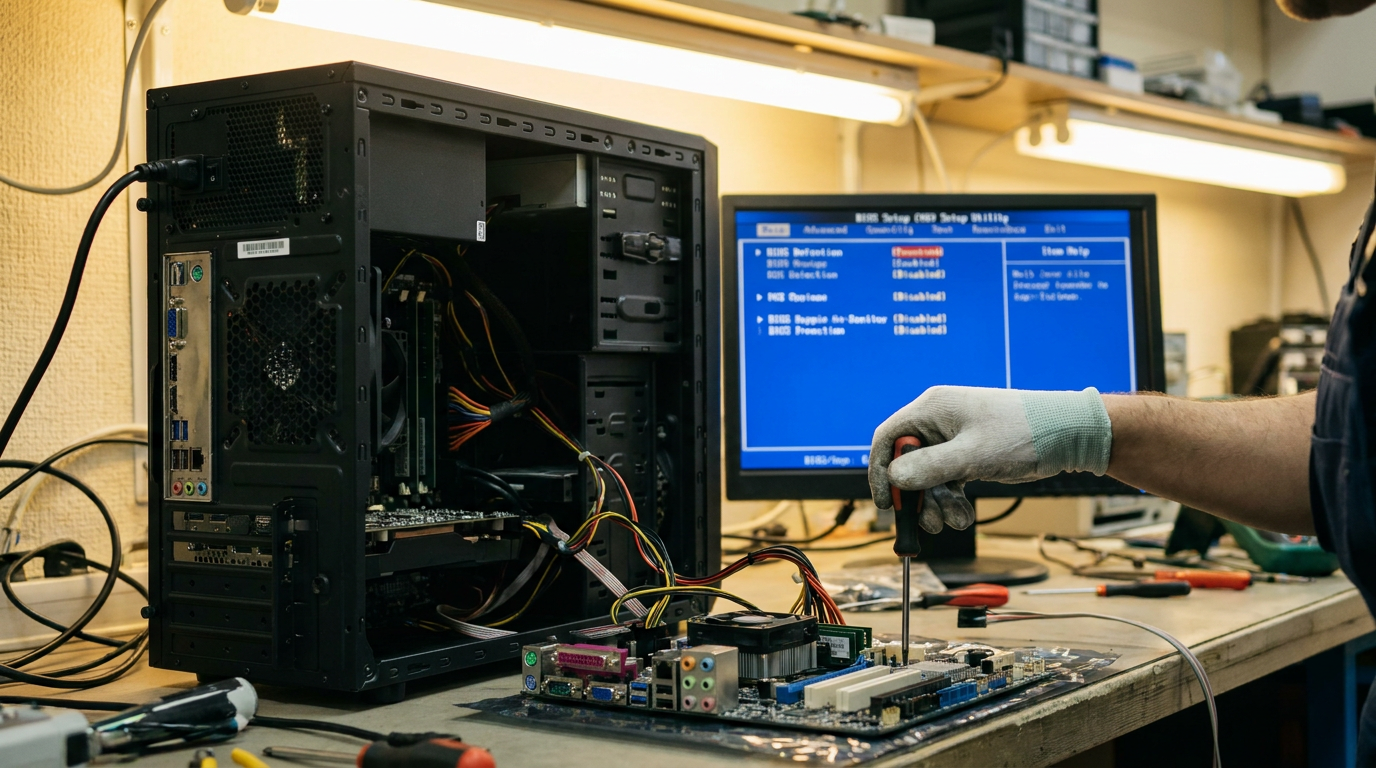
A PC stuck on the BIOS boot screen almost always means the motherboard cannot find a drive to boot from, or a hardware change confused the boot process before Windows ever loads.
Work backward from the moment things changed, whatever you plugged in, unplugged, or updated right before this started. The fix path below runs from a wrong boot order to a failing drive to a dead CMOS battery.
Check the Boot Order First
If the screen sits there or loops back to the BIOS menu, the boot order is the first suspect. Windows needs your main drive listed ahead of any USB stick or secondary disk.
Open the boot settings and check the order top to bottom. A USB drive sitting above your SSD is enough to stall the boot. Our boot order explainer covers how the priority list works and why setup tools sometimes rewrite it.
Move your main drive to the top slot, save, and reboot. This fixes a large share of stuck-boot cases, especially after a fresh OS install from USB.
Confirm the Drive Is Actually Detected
Sometimes the order is correct but the BIOS still cannot see the drive. Check the boot menu or storage summary. If the drive is missing entirely, nothing else here matters until that changes.
A loose SATA or power cable is the usual culprit on desktops. Shut down, unplug, and reseat both cables. On a laptop, a failing internal SSD can drop off the bus intermittently. Run a health check first with our SSD health guide, which shows whether a drive is failing or just misconfigured.
Reset BIOS Settings to Defaults
Corrupted or overly aggressive settings can trap a system on the boot screen even with a healthy drive, often after a firmware update, an overclock, or a leftover tweak from an earlier fix.
Enter the BIOS and look for Load Setup Defaults or Reset to Optimized Defaults. This returns memory timings, boot mode, and drive settings to a known-good state. Not sure how to get in. Our guide to opening BIOS on any Windows PC lists the correct key for each brand.
Save and reboot. If the screen clears, the settings were the problem, not the hardware.
Clear CMOS if Defaults Do Not Help
A full CMOS clear wipes the stored configuration entirely, including corruption a simple reset could not touch. Pull the round CMOS battery for about a minute, or use a clear jumper if your board has one.
A battery that dies after years of service can trigger the same symptom, since the board loses its saved settings on every power-off. If the PC also forgets the date and time, try a fresh battery first.
Remove Recently Added Hardware
New hardware is a common trigger and one of the easiest to rule out. A recently installed RAM stick, graphics card, or expansion card can conflict with existing parts or sit seated incorrectly.
Power down, unplug, and remove whatever you added last. Boot with only the original parts. If it passes, reinstall the new component and confirm it locks fully into its slot.
When to Suspect the Motherboard Itself
If you have checked the order, confirmed the drive, reset defaults, cleared CMOS, and pulled every new component and the PC still stalls, the fault likely sits on the motherboard. Bulging capacitors or a socket problem can cause this, and a board swap becomes the realistic path forward.
Frequently Asked Questions
Why does my PC boot straight into BIOS instead of Windows?
The BIOS cannot find a valid operating system on any drive in the boot order, either because the order is wrong, the drive is disconnected, or the drive has failed.
Will clearing CMOS delete my files?
No. It only resets firmware settings like boot order and clock speed, not anything stored on your drives.
Can a bad CMOS battery cause a boot screen freeze?
Yes. A dead battery lets the board lose its configuration between power cycles, leaving the PC stuck at the BIOS screen.