

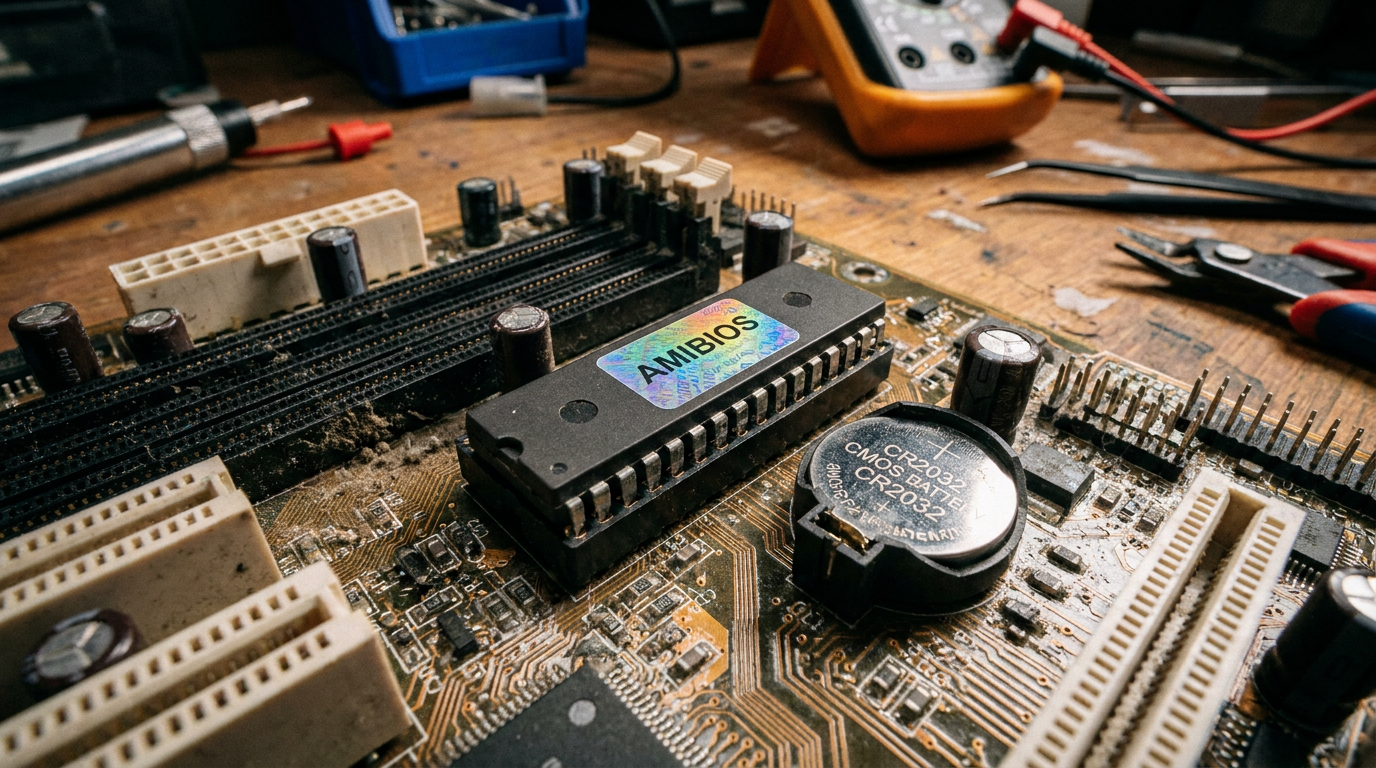
The real difference between BIOS and UEFI comes down to this: BIOS is old 16-bit firmware that boots from a Master Boot Record, while UEFI is modern firmware built for GPT disks, faster startups, and Secure Boot. If you just opened your firmware settings and saw both terms staring back at you, you are not imagining things. Most machines built since 2012 ship with UEFI but keep a legacy compatibility mode for older hardware. Once you know what each one controls, the boot menu stops looking like a foreign language.
Legacy BIOS vs UEFI Firmware
BIOS, short for Basic Input/Output System, has run PCs since the early 1980s. It lives on a motherboard chip, initializes hardware, then hands off to whatever sits first in the boot order. It reads the first sector of a drive using 16-bit code, which caps how much disk space and how many partitions it can address.
UEFI, short for Unified Extensible Firmware Interface, replaced that with a 32-bit or 64-bit environment running its own file system and drivers before the OS loads. If you have ever needed to open BIOS on a Windows PC, you were likely already inside a UEFI screen, since setup menus still get called “BIOS” out of habit. UEFI adds mouse support, graphical menus, and network booting that plain BIOS never had.
GPT vs MBR: Why Your Disk Format Depends on Boot Mode
Master Boot Record (MBR) partitioning tops out at four primary partitions and roughly 2.2TB per disk, because its address fields are only 32 bits wide. GUID Partition Table (GPT), the format UEFI expects, uses 64-bit addressing and supports up to 128 partitions on much larger volumes.
A GPT drive generally will not boot in pure legacy BIOS mode, and an MBR drive will not get full use out of UEFI. That mismatch is the most common reason a fresh Windows install refuses to boot after a clone or drive swap.
Secure Boot: The UEFI Feature Legacy BIOS Never Had
Secure Boot is a UEFI specification that checks the digital signature of the bootloader and OS kernel before letting them run. Legacy BIOS has no equivalent, since it predates firmware-level malware as a real threat.
Windows 11 requires Secure Boot enabled, which is why older BIOS-only machines cannot run it without a motherboard or firmware upgrade.
Why UEFI Boots Faster and Handles Drives Over 2TB
UEFI initializes hardware in parallel instead of running through the sequential checks legacy BIOS performs one at a time. Paired with an NVMe drive, that shaves real seconds off a cold boot compared to an equivalent BIOS-MBR setup.
UEFI paired with GPT also removes the 2.2TB ceiling entirely, which matters once you run a large-capacity SSD as your primary boot drive rather than secondary storage.
Why Your Boot Menu Shows Both UEFI and Legacy Options
Motherboard makers built in a Compatibility Support Module, or CSM, so machines could still boot older operating systems, add-in cards, or MBR drives. That is why a device often gets listed twice inside the same BIOS settings menu, once under UEFI and once under Legacy. Picking the wrong entry for a given drive usually causes a “no bootable device” error after a fresh install.
Can I switch from legacy BIOS to UEFI without reinstalling Windows?
Sometimes. Windows includes an MBR2GPT tool that converts the disk in place, but you still need to flip the firmware boot mode to UEFI afterward, and the process can fail on unusual partition layouts.
Does UEFI mean my PC is automatically more secure?
Only if Secure Boot and a firmware password are actually turned on. UEFI makes those protections possible, but many boards still ship with Secure Boot off by default.
Why does my boot menu list a drive twice?
That is the CSM at work, showing one UEFI entry and one legacy entry for the same physical drive. Pick the UEFI entry if the drive is GPT-formatted, or the boot will fail.