

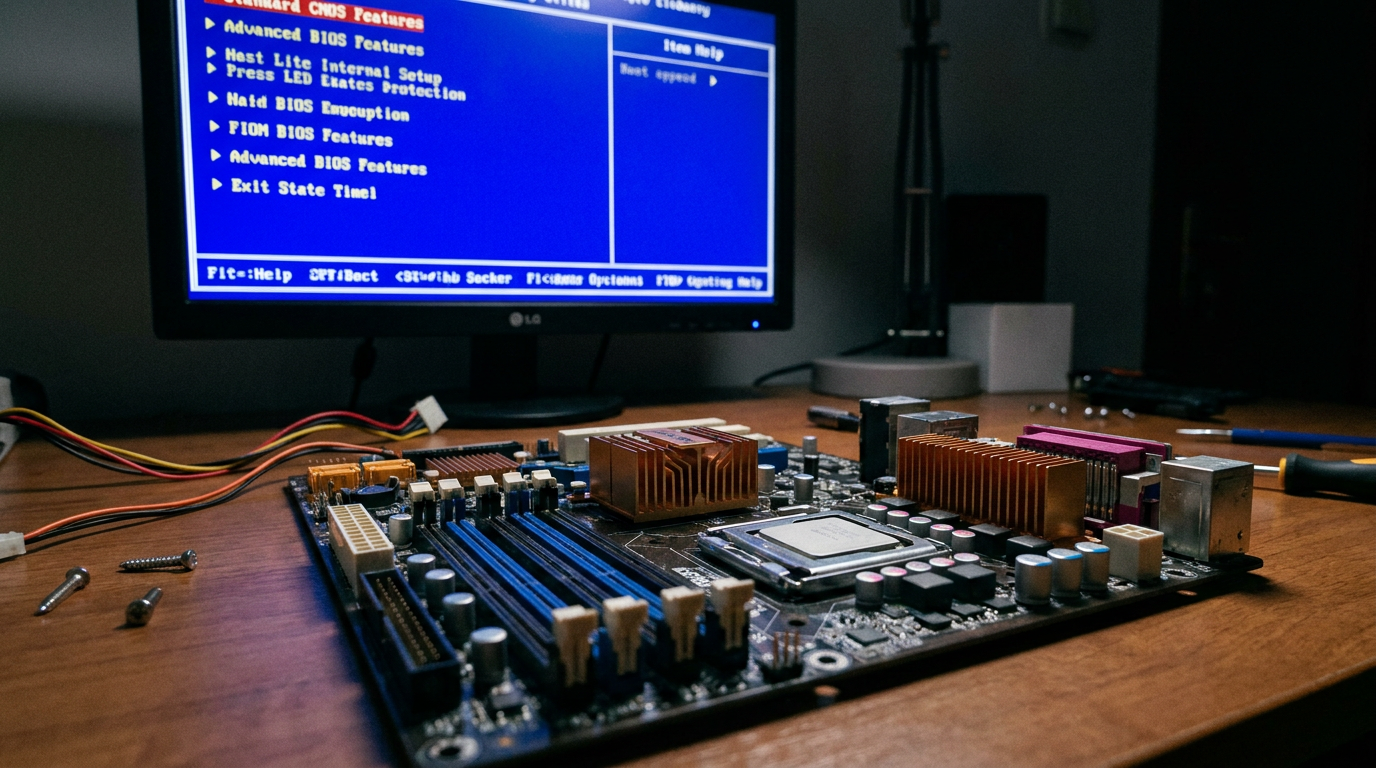
To enable secure boot in BIOS, restart your PC and enter UEFI or BIOS setup by pressing the key your board shows on the splash screen, usually Del, F2, or Esc. Go to the Boot or Security tab, find Secure Boot, and set it to Enabled. Confirm your boot mode is UEFI and not Legacy or CSM first, since Secure Boot only works under UEFI. Save and exit, and Windows should boot normally if your drive is already set up correctly.
That last part causes most failed attempts. Secure Boot depends on UEFI, and UEFI depends on your drive using the GPT partition table instead of the older MBR format. Flip the boot mode to UEFI on an MBR drive and you will land on a black screen or a “no bootable device” message.
Check your boot mode and partition style first
Press Windows key plus R, type msinfo32, and press Enter. Look at BIOS Mode in the System Summary panel. If it says Legacy, your drive is almost certainly MBR.
To confirm, right click Start, open Disk Management, right click your main disk, choose Properties, then Volumes. It lists MBR or GPT. Already on UEFI and GPT? Skip ahead to enabling Secure Boot.
Convert MBR to GPT without wiping Windows
Windows 10 and 11 include a built-in tool called mbr2gpt that converts your drive in place, no reinstall needed. Open Command Prompt as administrator, run mbr2gpt /validate /allowFullOS, then mbr2gpt /convert /allowFullOS if that passes. It takes minutes and does not touch your files.
Skip this step and flip Legacy straight to UEFI, and Windows will not find a bootable partition, forcing you back into Legacy mode to recover. For a deeper breakdown of how the two boot standards differ, our guide on BIOS vs UEFI: What Is the Real Difference covers the mechanics in plain terms.
Enter BIOS and enable Secure Boot
- Restart and press the setup key shown on the boot screen, commonly Del, F2, F10, or Esc.
- Open the Boot tab and confirm Boot Mode or Boot List Option is set to UEFI.
- Go to the Security tab (sometimes listed under Boot) and find Secure Boot.
- Set it to Enabled. On some Dell and HP systems it stays grayed out until Boot Mode is UEFI.
- Save and exit, usually F10, then confirm the reboot.
New to this menu? Our walkthrough on how to open BIOS on any Windows PC covers every common key combination by manufacturer.
What to do if Windows will not boot afterward
If your screen goes black or shows a boot device error after enabling Secure Boot, go back into setup and switch Boot Mode back to Legacy or CSM temporarily to restore access. Run the mbr2gpt validation step above before trying UEFI and Secure Boot again. If boot order got scrambled, check our guide on what BIOS boot order is and how to change it to point your PC back at the right drive.
Confirm Secure Boot is actually active
Once Windows loads, press Windows key plus R, type msinfo32, and check the Secure Boot State field. It should read On. You can also run Confirm-SecureBootUEFI in PowerShell as administrator, which returns True when configured correctly.
Do I need Secure Boot for Windows 11?
Yes. Windows 11 requires Secure Boot along with UEFI and TPM 2.0 as minimum hardware requirements. Some systems still run it with Secure Boot off through workarounds, but Microsoft does not officially support that setup.
Why is Secure Boot grayed out in my BIOS?
Most boards lock this option until Boot Mode is set to UEFI instead of Legacy or CSM. Change that first, save, then return to the Security or Boot tab to enable Secure Boot.
Will enabling Secure Boot delete my files or programs?
No. The risk comes from switching an MBR drive straight to UEFI without converting it first, which can leave Windows unable to find its boot partition. Converting with mbr2gpt before you flip the setting avoids that entirely.