

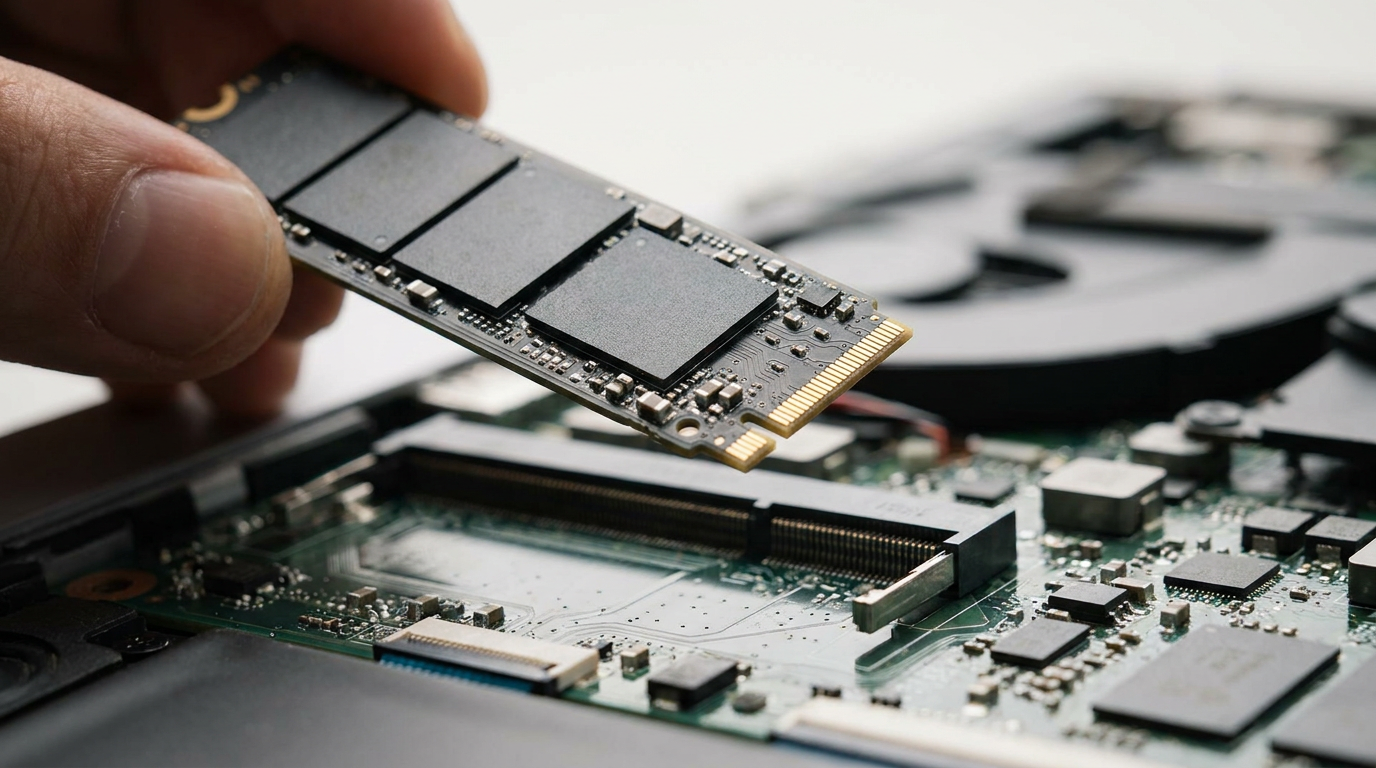
The fastest way to check SSD speed is to run a dedicated benchmark tool like CrystalDiskMark on Windows or Blackmagic Disk Speed Test on a Mac, then compare the read and write numbers against what your drive type should deliver. A SATA SSD that scores near NVMe Gen4 speeds is impossible, and an NVMe drive limping along at SATA-level numbers points to a real problem. This guide walks you through the tools, the realistic speed ranges by drive type, and what to fix if your results come in low.
Run a Benchmark to Get Real Numbers
Download CrystalDiskMark on Windows. It runs sequential and random read/write tests in a few minutes and gives you MB/s figures instead of marketing claims from the box.
On macOS, Blackmagic Disk Speed Test does the same job. Linux users can run hdparm -Tt /dev/sda or try KDiskMark, a CrystalDiskMark-style front end.
Run each test two or three times. Background processes or a nearly full drive can drag down a single result, so one bad run doesn’t mean your SSD has failed.
What Counts as Normal Speed for Your Drive Type
A SATA SSD is capped by the SATA III interface itself, so sequential speeds top out in the 500-550 MB/s range regardless of the drive’s quality. If yours scores well below that, something is holding it back.
An NVMe Gen3 drive connects over PCIe and typically reaches sequential speeds in the low thousands of MB/s. NVMe Gen4 pushes considerably higher again, often several times faster in sequential reads, though random 4K performance narrows the gap more than most buyers expect.
Deciding between drive types rather than testing one you already own? The NVMe vs SSD comparison breaks down which interface actually matters for your workload.
Signs Your SSD Is Underperforming
Boot times that crept up over months, file copies that stall partway, or a system that feels sluggish only when the drive is nearly full are the usual complaints. A benchmark confirms whether it’s the drive or something else.
A drive running well under its rated speed while temperatures also read high often points to thermal throttling on an NVMe SSD without a heatsink.
Speed problems and failing-drive problems look similar but aren’t the same diagnosis. If your numbers are fine but you’re seeing crashes or corrupted files, run a proper SSD health check instead, since a drive can be fast and still be dying.
Fix the Common Causes Before You Blame the Drive
Check that the drive is running in AHCI mode, not IDE, in your BIOS. The wrong controller mode alone can cut SSD performance dramatically.
Confirm the SSD is seated in the correct slot. Some motherboards share PCIe lanes between an M.2 slot and a SATA port, so populating both can throttle either device.
Leave at least 10-20% of the drive free. SSDs slow down as they approach full capacity because the controller runs out of spare blocks for wear leveling.
On Windows 11 and want native tools instead of a third-party app? The SSD health check for Windows 11 guide covers built-in options that also surface performance warnings.
Frequently Asked Questions
Does a slow SSD mean it’s failing?
Not necessarily. Slow speeds are often caused by AHCI settings, a nearly full drive, or thermal throttling. A failing drive usually shows other symptoms too, like read errors or files that won’t open.
Why is my NVMe SSD only running at SATA speeds?
This usually means the drive is installed in an M.2 slot wired for SATA rather than PCIe, or the BIOS has the slot configured incorrectly. Check your motherboard manual for which slots support NVMe.
Is CrystalDiskMark safe to run on my main drive?
Yes. It writes and reads temporary test files during the benchmark and removes them afterward. It doesn’t touch existing data, though repeated runs add minor wear like any other write operation.