

NVMe vs SSD: Which Storage Should You Buy?
NVMe is a type of SSD, not a competitor to it. The comparison that actually matters is NVMe (running over PCIe) versus SATA SSD. SATA tops out around 550 MB/s for reads. An NVMe drive on PCIe 3.0 reaches roughly 3,500 MB/s, PCIe 4.0 pushes to 7,000 MB/s, and PCIe 5.0 doubles that again at around 14,000 MB/s. For everyday desktop use, the gap is real but less dramatic than spec sheets suggest. For large file work, video editing, and sustained transfers, NVMe wins by a margin you will notice.
If your machine has been feeling sluggish, the storage interface is often the last bottleneck people think to check. You might already have an M.2 slot that supports NVMe but have never used it. Or you bought an M.2 drive and it turned out to be SATA anyway. The naming is genuinely confusing, and getting it wrong costs money.
This guide separates the terminology, explains the speed differences by PCIe generation, walks through form factor compatibility, and gives you a four-step decision process for your specific situation.
Both Are SSDs: What the Labels Actually Mean
The phrase “NVMe vs SSD” implies NVMe is a separate category of storage. It is not. SSD (Solid State Drive) describes the storage medium: NAND flash with no moving parts. NVMe (Non-Volatile Memory Express) describes the communication protocol used to talk to that NAND flash over a PCIe bus.
The older protocol, AHCI (Advanced Host Controller Interface), was designed for spinning hard drives in 2004. SATA SSDs still use AHCI. It works fine, but it was never built for the access patterns of solid-state storage. NVMe was written from scratch for flash memory: per the NVM Express specification, it supports up to 65,535 command queues with 65,535 commands each, versus AHCI’s single queue of 32 commands. That architectural difference is why NVMe can sustain far higher throughput before it starts waiting.
So the correct framing: you have two SSD types, both storing data on NAND flash, but using different interfaces and protocols to move that data. SATA uses the SATA interface and AHCI protocol. NVMe uses a PCIe lane and the NVMe protocol. If your machine’s storage feels slow, learning to check your SSD health is a good first step before deciding whether the interface is the bottleneck.
The Interface Difference: SATA vs PCIe Lanes
SATA III, the current version, has a rated bandwidth of 6 Gb/s. In practice, encoding overhead caps real-world sequential reads at around 550 MB/s and writes around 520 MB/s. That ceiling is fixed in the specification and cannot be exceeded regardless of how fast your NAND flash is.
NVMe drives connect via PCIe lanes, which carry far more bandwidth. A single PCIe 3.0 x4 link delivers around 3,940 MB/s of theoretical bandwidth. PCIe 4.0 x4 doubles that to roughly 7,880 MB/s. PCIe 5.0 x4 doubles it again. The drives never quite hit theoretical ceilings, but even accounting for real-world overhead, the gap between SATA and PCIe 4.0 NVMe is approximately 12 to 13 times in raw sequential read speed.
The practical consequence: copying a 10 GB video file over a SATA SSD takes around 18 to 19 seconds. Over a PCIe 4.0 NVMe drive, that same transfer completes in 1.5 to 2 seconds. For someone who moves large files regularly, that difference accumulates fast. For someone who browses the web and reads email, the difference largely disappears because those tasks are bottlenecked by latency, not throughput.
PCIe Generations: 3.0, 4.0, and 5.0 Speed Tiers
Not all NVMe drives perform the same. The PCIe generation of both the drive and your motherboard determines the ceiling you actually reach.
PCIe 3.0 NVMe drives are the most common in machines from 2017 to 2022. Sequential reads sit around 3,000 to 3,500 MB/s, writes around 2,000 to 3,000 MB/s. Drives like the Samsung 970 EVO Plus and WD Blue SN570 are representative of this tier. These are still four to five times faster than any SATA drive at sequential workloads.
PCIe 4.0 NVMe drives require a PCIe 4.0 capable motherboard and CPU. AMD Ryzen 3000 series was the first mainstream platform to support it; Intel followed with 12th Gen Alder Lake. The Samsung 980 Pro and WD Black SN850X are well-established examples at this tier. Sequential reads typically land between 6,500 and 7,000 MB/s. Sequential writes range from 5,000 to 6,800 MB/s depending on the controller and whether the drive includes DRAM cache.
PCIe 5.0 NVMe drives arrived with Intel 13th Gen and AMD Ryzen 7000 platforms. Top sequential reads reach 12,000 to 14,000 MB/s. These drives generate significant heat and command a price premium. For workstation-class work involving massive file operations, the speed is real. For most buyers, the premium over PCIe 4.0 is hard to justify at current prices.
One nuance: if you install a PCIe 4.0 drive in a PCIe 3.0 slot, the drive runs at PCIe 3.0 speeds. It works, but you paid for performance you cannot use. Check your motherboard spec sheet before buying.
Form Factors and the M.2 Confusion
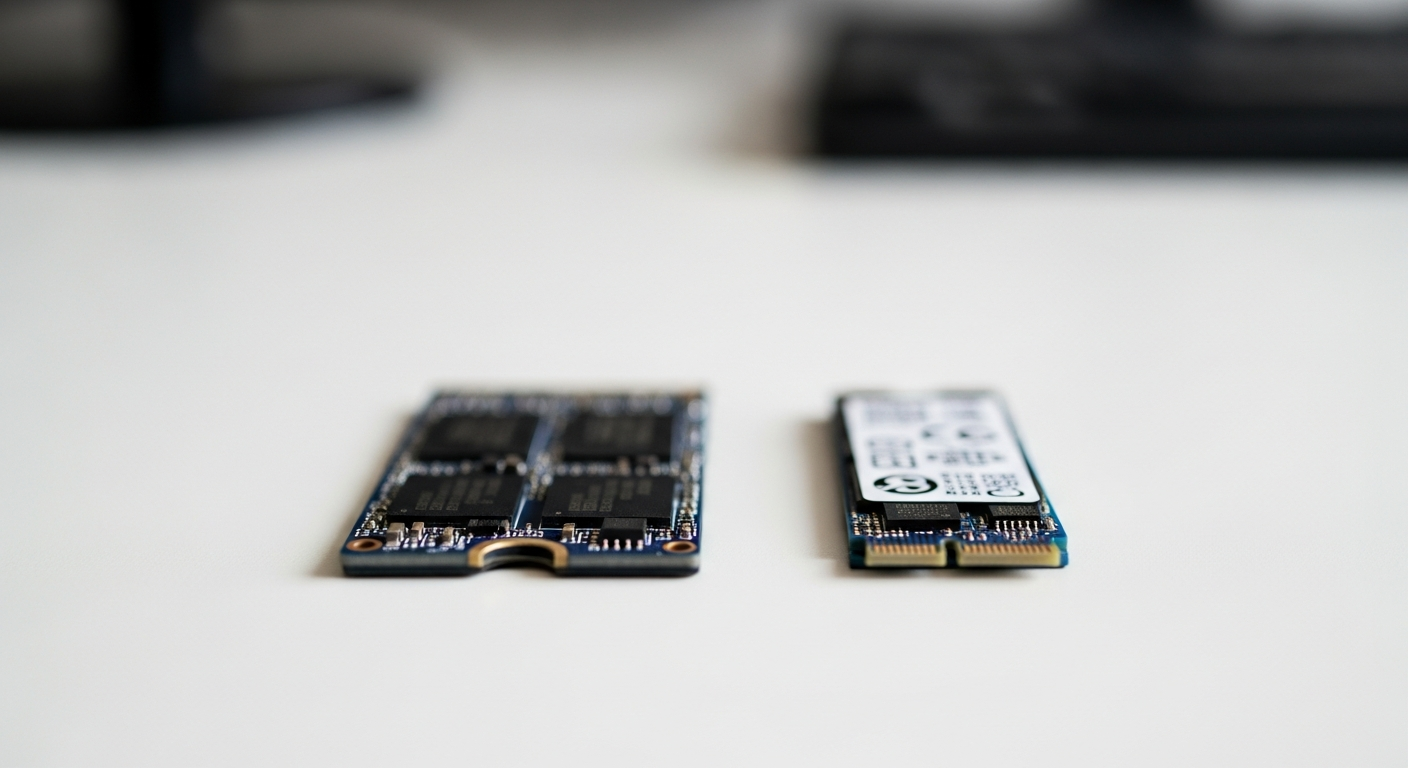
This is where most people go wrong. M.2 is a physical form factor, not a protocol. An M.2 slot can support either SATA or NVMe, depending on the motherboard and the drive installed. Buying an M.2 drive does not guarantee NVMe performance.
The physical keying helps identify what a drive supports. M.2 drives use either a B key, an M key, or both (B+M key). SATA M.2 drives typically use the B+M key. NVMe M.2 drives almost always use the M key only. An M-key-only NVMe drive will not seat in a B-key-only slot. When you buy, verify the keying matches your slot.
SATA SSDs also come in the traditional 2.5-inch form factor, which plugs into a SATA data cable and draws power from the SATA power connector. Older laptops and desktops with no M.2 slot use this exclusively. The 2.5-inch form factor can only run SATA; there is no 2.5-inch NVMe drive designed for standard consumer use.
To make things slightly more complicated, some older M.2 slots are electrically SATA-only. They have the M.2 connector but they only pass SATA signals. If you insert an NVMe drive, it either will not be recognized or will throw an error. Your motherboard manual or manufacturer support page will state whether your M.2 slot is “SATA only,” “PCIe only,” or “both.” Always check before ordering.
If you have been dealing with heat complaints while troubleshooting this, you may want to fix laptop overheating independently, since high-performance NVMe drives under sustained load can raise chassis temperatures in compact laptops.
Real-World Performance: Where the Gap Shows (and Where It Does Not)
Raw sequential speeds dominate the marketing conversation. The reality of what you actually experience day to day is more nuanced.
OS boot times: Both a modern SATA SSD and an NVMe drive will boot Windows in 10 to 20 seconds on current hardware. Boot is bottlenecked by firmware initialization, driver loading, and startup applications more than raw storage throughput. The difference between SATA and NVMe at boot is typically 2 to 5 seconds. That is real, but it is not the dramatic difference the spec numbers imply.
Game load times: For most titles, SATA and NVMe differ by 1 to 8 seconds per load screen. Games with large streaming worlds and Microsoft’s DirectStorage technology can show larger gaps as the spec matures, but for the current library of games, the practical difference is modest. If slow game loads are your complaint, the bottleneck is often the CPU or RAM, not storage. Running a fix a slow laptop diagnostic will often point to a different root cause entirely.
Video editing and production work: Here NVMe earns its price premium. Editing 4K or 6K raw footage without proxies, running multi-stream timelines, and rendering directly from project drives all benefit from 3,000 to 7,000 MB/s sustained reads. SATA SSDs can struggle with real-time playback at high resolutions and high bitrates. For a video editor working daily on compressed H.264, a SATA SSD may be entirely adequate. For raw workflows and anything uncompressed, NVMe is worth the cost.
Large file transfers and backups: This is the clearest NVMe win in everyday use. Copying 50 GB of photos or moving a project folder between drives is three to ten times faster on NVMe than SATA. If you do this regularly, the time savings are tangible.
Random read/write: Both SATA and NVMe SSDs are fast at small random operations because they both eliminate rotational latency. The gap narrows here, particularly for DRAM-less NVMe drives at low queue depths. Budget NVMe drives without onboard DRAM cache sometimes perform worse than a mid-range SATA SSD under specific random write workloads. Always check whether a drive includes a DRAM cache before buying, especially at the budget end.
Compatibility: Does Your Laptop or Motherboard Support NVMe?
Before you buy, confirm three things about your system.
First, check whether your laptop or motherboard has an M.2 slot at all. On laptops, this is often documented in the service manual. On desktop motherboards, the spec sheet lists M.2 slots and their supported protocols. Some budget boards have a single M.2 slot and it only supports SATA.
Second, check whether that M.2 slot supports PCIe (NVMe). As noted, M.2 slots can be SATA-only. The product page will say “M.2 NVMe” or “M.2 PCIe” if PCIe is supported. If the spec sheet says only “M.2 SATA,” you cannot install an NVMe drive there.
Third, verify the PCIe generation. A PCIe 3.0 slot will run a PCIe 4.0 drive at PCIe 3.0 speeds. That is acceptable, but you should know what you are getting.
For laptops specifically: many thin-and-light ultrabooks from 2016 to 2020 have a single M.2 slot that is NVMe-capable but only at PCIe 3.0 x2, which delivers around 1,600 MB/s rather than the full x4 speeds. That is still three times faster than SATA, but not the full NVMe ceiling. Check whether your slot is x2 or x4.
Price Comparison: Where the Gap Stands Now
NVMe and SATA SSDs have reached near price parity at common capacities. At the 1 TB mark, entry-level PCIe 3.0 NVMe drives frequently retail at the same price as mid-tier SATA drives. The practical implication: if your system supports NVMe and you are buying a new drive, there is rarely a cost reason to choose SATA over PCIe 3.0 NVMe at 500 GB or 1 TB.
PCIe 4.0 drives carry a modest premium, typically 15 to 30 percent over comparable PCIe 3.0 drives at 1 TB. PCIe 5.0 drives remain significantly more expensive and harder to justify unless you have a specific sustained-transfer use case and a platform that supports PCIe 5.0.
SATA still makes sense in a few scenarios: you have an older system with no M.2 slot and a 2.5-inch bay, you are upgrading a machine where SATA is the only option, or you are buying secondary storage in a system where the primary NVMe drive already handles performance-critical tasks. SATA drives also run cooler, which matters in thermally constrained systems.
NVMe vs SATA SSD: Full Comparison
| Spec | SATA SSD | NVMe PCIe 3.0 | NVMe PCIe 4.0 |
|---|---|---|---|
| Interface | SATA III (6 Gb/s) | PCIe 3.0 x4 | PCIe 4.0 x4 |
| Max sequential read | ~550 MB/s | ~3,500 MB/s | ~7,000 MB/s |
| Max sequential write | ~520 MB/s | ~3,000 MB/s | ~6,500 MB/s |
| Form factors | 2.5-inch, M.2 (SATA) | M.2 (NVMe), PCIe add-in card | M.2 (NVMe) |
| Typical use | OS drive, secondary storage, older systems | Primary drive, most workloads | Video editing, large file work, new builds |
| Price tier | Budget to mid-range | Budget to mid-range (near parity) | Mid-range to premium |
Choose Between NVMe and SATA in 4 Steps
- Check your system’s physical slots. Open the service manual or look inside the case. Does your laptop or board have an M.2 slot? If no M.2 slot exists, a 2.5-inch SATA SSD is your only SSD option. If yes, note how many and what keying they use.
- Confirm whether those M.2 slots support PCIe (NVMe). Check the motherboard spec sheet or laptop support page. If the slot is SATA-only, buy a SATA M.2 drive. If it supports PCIe, proceed to step 3.
- Identify the PCIe generation your platform supports. PCIe 3.0 platforms include Intel 6th through 10th Gen and AMD Ryzen 1000 through 3000. PCIe 4.0 platforms include AMD Ryzen 3000 with X570 boards, Ryzen 5000 and up, and Intel 12th Gen and later. If PCIe 4.0 is available, a PCIe 4.0 NVMe drive is worth the modest premium for a new primary drive. If PCIe 3.0, a PCIe 3.0 or PCIe 4.0 NVMe drive (running at 3.0 speeds) is the right choice.
- Match use case to drive tier. For everyday computing, PCIe 3.0 NVMe is enough. For video production, large file transfers, or sustained workstation loads, PCIe 4.0 NVMe pays back the premium. For a secondary game storage drive in a system already running NVMe as the OS drive, a SATA SSD is a perfectly fine cost-saving option.
When SATA Still Makes Sense
SATA SSDs are not obsolete. They are fast enough that most users cannot feel the difference from NVMe in typical tasks, and they have two genuine advantages: heat and price at higher capacities.
A 4 TB SATA SSD costs noticeably less than a 4 TB NVMe drive, and the gap widens at 8 TB. For bulk secondary storage, archives, or media libraries, SATA is the economical choice. SATA drives also run significantly cooler, which matters in slim laptops or tight ITX builds where thermal headroom is limited. If your primary NVMe drive runs hot enough that you are considering a heatsink, adding a secondary SATA SSD over a USB-C enclosure or a 2.5-inch bay sidesteps the thermal issue entirely.
The only scenario where choosing SATA over NVMe is a mistake: when you have an NVMe-capable slot available, are buying a primary OS drive, and the two drives are the same price. In that case, take the NVMe every time.
DRAM Cache: Why It Matters More Than the Brand Name
Budget NVMe drives often omit onboard DRAM cache to cut costs. Without DRAM, the drive uses a portion of system RAM as a cache buffer via host memory buffer (HMB), which works fine under light use but can cause sustained write performance to drop sharply when the buffer fills. A DRAM-equipped NVMe drive maintains more consistent write speeds under heavy load and generally ages better as the NAND wears.
For primary OS and application drives, prioritize models with DRAM. For pure read-heavy use like a game storage drive, DRAM-less is acceptable. Check the drive’s spec sheet or a third-party review site such as Tom’s Hardware or AnandTech for confirmation before buying, since manufacturers do not always advertise the absence of DRAM prominently.
NVMe or SATA: The Decision Comes Down to Your Slot
If your system has a PCIe M.2 slot and you are buying a primary drive, get an NVMe SSD. PCIe 3.0 NVMe is fast enough for nearly all tasks and costs about the same as SATA at common capacities. If you edit video or move large files regularly, step up to PCIe 4.0. If your system only has a 2.5-inch bay or an M.2 slot confirmed to be SATA-only, a SATA SSD is still an excellent upgrade over any hard drive and will serve you well for years.
The spec race at PCIe 5.0 is real, but for most buyers the performance plateau arrives well before that tier. Spend the premium on DRAM cache and drive reliability before chasing the highest sequential read number on the shelf.
If you are also evaluating whether your current machine is worth upgrading or due for replacement, the slow laptop diagnostic guide covers storage alongside the other components that affect real-world speed.
Frequently Asked Questions
Is NVMe an SSD?
Yes. NVMe is an SSD that uses the NVMe protocol over a PCIe bus instead of the older AHCI protocol over a SATA bus. Both NVMe and SATA SSDs store data on NAND flash with no moving parts. NVMe describes the interface and protocol, not a separate storage technology.
Is NVMe worth it over a SATA SSD?
For a primary OS drive in a system with an available PCIe M.2 slot, yes, especially since PCIe 3.0 NVMe drives now cost roughly the same as mid-range SATA drives at 1 TB. For secondary game storage or archives, SATA remains a sensible, cost-efficient option with lower heat output.
Can I put an NVMe drive in any laptop?
No. Your laptop needs an M.2 slot that specifically supports PCIe (NVMe). Many older laptops have M.2 slots that only support SATA. Some have no M.2 slot at all. Check the service manual or the manufacturer’s support page before buying. Installing an NVMe drive in a SATA-only M.2 slot will result in the drive not being recognized.
What is the real-world speed difference between SATA and NVMe for gaming?
Smaller than specifications suggest. Most games load 1 to 8 seconds faster from NVMe versus SATA SSD. For titles that heavily stream open-world assets, the gap is larger. For competitive multiplayer games with small maps, it is nearly zero. Game load time bottlenecks are frequently RAM or CPU, not storage throughput.
What is a DRAM-less NVMe drive and should I avoid it?
A DRAM-less NVMe drive omits an onboard cache chip and uses system RAM instead via a feature called host memory buffer. It performs well under light, bursty workloads but can drop to SATA-comparable speeds under heavy sustained writes. For an OS drive in a workstation or content creation machine, choose a drive with onboard DRAM. For a secondary game drive or read-heavy storage, DRAM-less is acceptable at a lower price.
Does M.2 always mean NVMe?
No. M.2 is a physical connector standard, not a protocol. An M.2 slot can carry either SATA or NVMe signals depending on the motherboard. An M.2 drive with a B+M key is almost always SATA. An M.2 drive with an M key only is almost always NVMe. Always check the slot specification in your motherboard or laptop manual before buying.