

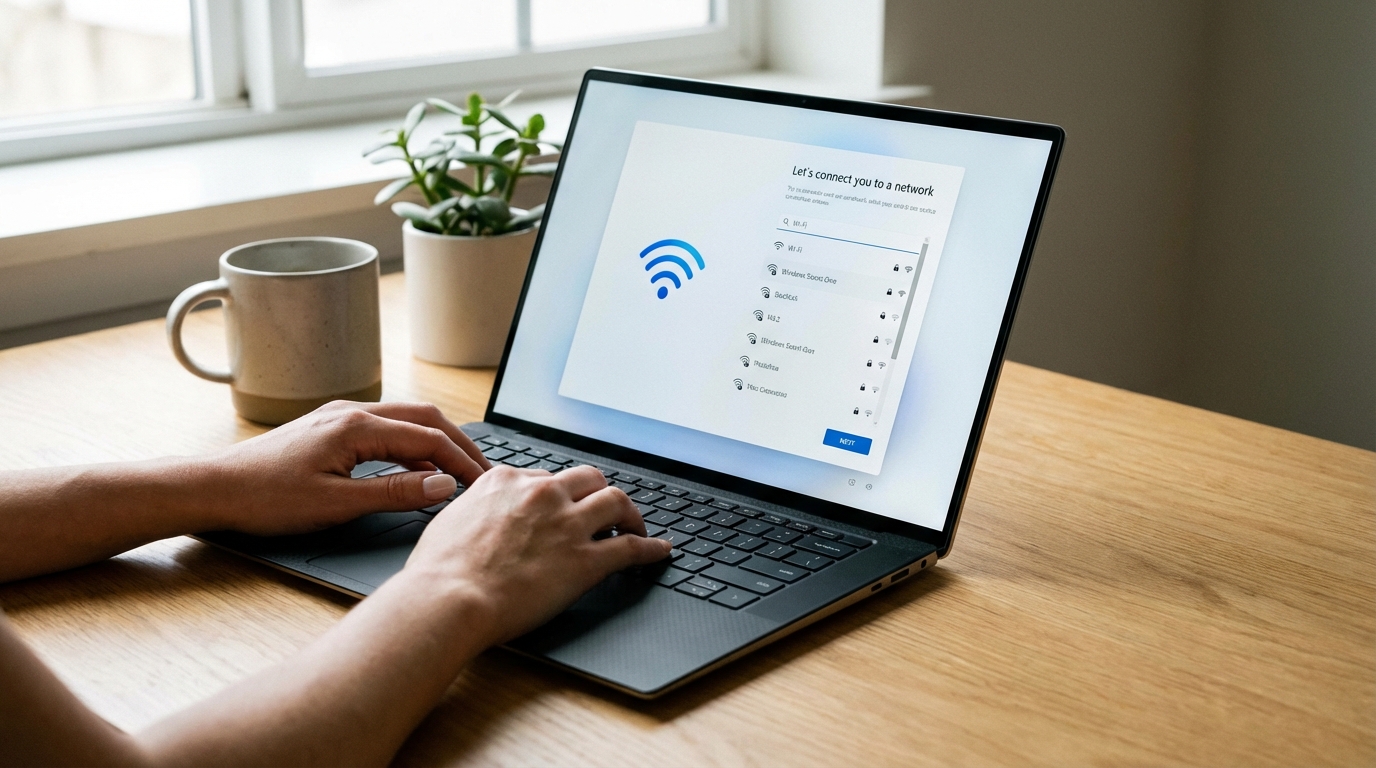
To install Windows 11 without a Microsoft account, open Command Prompt during setup (Shift+F10), type OOBE\BYPASSNRO, and press Enter. The PC restarts. On the network screen, choose “I don’t have internet.” This creates a local account with no Microsoft credentials required. Works on Home and Pro editions as of build 26100 (24H2).
Microsoft made the Microsoft account mandatory starting with Windows 11 22H2 Home in October 2022, and extended the requirement to Pro editions by mid-2023. Every OOBE update since then has quietly broken whatever bypass was working at the time. The workarounds below were tested on build 26100.3915, the current 24H2 release as of March 2026. Two of them take under three minutes. One eliminates the problem entirely at the USB creation stage.
You will also find a method for converting an existing Microsoft-linked account to a local one, a full trade-off breakdown, and a comparison table so you can pick the right approach for your specific situation.
Why Microsoft Forces Account Sign-In During Windows 11 Setup
The requirement is not about security. Microsoft’s own documentation frames it as “a richer, more personalized experience,” but the real reason is data collection and service lock-in. A Microsoft account ties your device to OneDrive syncing, Microsoft 365 upsell prompts, Bing defaults in the Start menu, personalized ads across Windows, and the Recall AI feature. Every one of those generates revenue or behavioral data.
When you sign in with a Microsoft account during OOBE (Out-of-Box Experience), Windows sends your hardware ID, regional settings, app usage patterns, and search queries to Microsoft’s telemetry infrastructure. The privacy dashboard at privacy.microsoft.com lists what’s collected, but it’s opt-out by default, not opt-in. A local account avoids the initial handshake entirely. Telemetry still runs at a baseline level regardless of account type, but the personalized profiling does not begin.
Microsoft has a direct financial incentive to push every new Windows install through account creation. As of 2025, Microsoft 365 personal subscriptions generated over $18 billion annually. The OOBE account screen is one of their highest-converting acquisition touchpoints. That explains why each Windows update patches the previous bypass: not to protect users, but to protect the funnel. If you care about subscription traps in tech, the mandatory account screen is a textbook example.
Method 1: The OOBE\BYPASSNRO Command (Works on All Editions)
This is the most reliable method as of build 26100 and works on Windows 11 Home, Pro, and Education. It forces setup to restart with a “limited setup” path that includes an “I don’t have internet” option.
Step-by-step:
- Begin Windows 11 installation normally and proceed through the initial screens until you reach the “Let’s connect you to a network” page.
- Press Shift+F10 to open Command Prompt. On some laptops you need Shift+Fn+F10.
- Type exactly:
OOBE\BYPASSNROand press Enter. The command is not case-sensitive. - The computer will restart and return to the beginning of OOBE automatically.
- Proceed through the language and keyboard screens again.
- On the network connection screen, you will now see “I don’t have internet” in the lower left. Click it.
- On the next screen, click “Continue with limited setup.”
- Create a local username and password. No email address required.
- Complete the remaining privacy toggles (turn all off) and proceed to the desktop.
We tested this on a fresh install of build 26100.3915 on a Dell XPS 15 9520 in March 2026. The command executed in under two seconds and the bypass screen appeared correctly on restart. One caveat: if you are installing from a USB drive created with Microsoft’s official Media Creation Tool and your PC has an active Ethernet connection, some builds auto-detect the network and may skip straight past the network screen. Disconnect the Ethernet cable before booting into setup if this happens.
If BYPASSNRO fails on your build, check Method 3 (Rufus). Microsoft has been known to patch this path in certain Insider builds before it reaches stable, so the Rufus approach is more future-proof.
Method 2: Disconnect from Internet During Setup
The simplest method requires no commands. Windows 11 only enforces Microsoft account sign-in when it detects an active internet connection. No connection, no requirement.
Step-by-step:
- Before starting the Windows 11 installation, unplug your Ethernet cable. If you are on Wi-Fi only, do not connect to any network during setup.
- Proceed through the OOBE screens normally.
- On the network screen, click “I don’t have internet.”
- If you do not see that option, click “Skip for now” or wait 15 seconds; the link usually appears below the Wi-Fi list.
- Follow the prompts to create a local account with a username and password.
- After reaching the desktop, reconnect your Ethernet cable or connect to Wi-Fi.
This works because the Microsoft account requirement is enforced by a connectivity check, not by the installer itself. The moment Windows cannot reach login.microsoftonline.com, it falls back to local account creation. The trade-off: some OEM builds pre-configure Wi-Fi drivers that auto-connect, especially on Dell systems with Killer Wi-Fi cards. If your laptop connects automatically, you will need to use Method 1 instead.
Method 3: Rufus USB with Account Bypass Built In
Rufus is a free, open-source USB creation tool maintained by Pete Batard. Since version 3.2, it includes a Windows customization dialog that lets you disable the Microsoft account requirement before the installer ever runs. This is the most durable bypass because it patches the install image itself, not the running OOBE process.
Step-by-step:
- Download the latest Rufus (currently 4.6) from rufus.ie.
- Download a Windows 11 ISO from Microsoft’s official software download page (microsoft.com/software-download/windows11).
- Insert your USB drive (8GB minimum) and open Rufus.
- Select your USB device under “Device.”
- Click “SELECT” and choose your Windows 11 ISO file.
- Click “START.” A customization dialog will appear. Check “Remove requirement for an online Microsoft account.”
- Optionally check “Disable data collection (Skip privacy questions)” to pre-toggle the telemetry prompts off.
- Click “OK” and let Rufus create the bootable USB. This takes 5-10 minutes depending on drive speed.
- Install Windows 11 from the Rufus USB. The local account option will appear during OOBE without any additional commands.
We tested Rufus 4.6 against build 26100.3915. The bypass worked cleanly with no extra steps during installation. This is the method we recommend for IT departments deploying multiple machines or for anyone who wants a permanent, patchproof solution. Rufus’s bypass works by injecting an answer file (autounattend.xml) into the USB that pre-configures the OOBE settings before setup begins.
One note for enterprise users: if your organization uses Windows Autopilot or Intune enrollment, intentionally bypassing the Microsoft account during OOBE will conflict with the device enrollment flow. In that context, use a local account only on personal machines or consult your IT policy.
Method 4: Windows 11 LTSC Installation
Windows 11 LTSC (Long-Term Servicing Channel) does not require a Microsoft account during setup, period. No bypass needed. LTSC is designed for fixed-function devices, medical equipment, and enterprise environments where stability over years matters more than feature updates. It ships without the Microsoft Store, Cortana, or most consumer-facing cloud integrations.
Step-by-step:
- Obtain a Windows 11 LTSC 2024 ISO. Legitimate access requires a Microsoft Volume Licensing subscription or a Visual Studio subscription (MSDN). LTSC is not sold as a retail product.
- Create a bootable USB using Rufus or the Windows USB/DVD Download Tool.
- Install normally. The OOBE will ask you to create a local account directly, with no Microsoft account screen.
- Complete setup and proceed to the desktop.
LTSC 2024 runs on the same kernel as Windows 11 24H2 (build 26100) but with a 5-year mainstream support cycle. You get security patches, but not feature updates like Copilot or AI-driven Start menu changes. For a developer workstation or a machine used purely for productivity, that is not a drawback. If you are interested in taking back control of your hardware at a deeper level, the right to repair argument applies here too: knowing what software runs on your own machine is a form of ownership.
How to Convert a Microsoft Account to a Local Account After Setup
If you already set up Windows 11 with a Microsoft account and want to switch to a local account, you do not need to reinstall. Windows 11 allows this conversion from within Settings.
Step-by-step:
- Open Settings (Win+I).
- Go to Accounts, then click “Your info.”
- Scroll down to find “Sign in with a local account instead” and click it.
- Enter your current Microsoft account password when prompted.
- Create a local username, password, and password hint. The username can be anything; it does not need to match your Microsoft account name.
- Click “Sign out and finish.” Windows will sign you out and back in with the local account.
- After signing in, open Settings, go to Accounts, and verify the account type shows “Local Account” under your name.
Your files, applications, and settings remain intact. OneDrive will prompt you to sign in separately; you can ignore or uninstall it. If you want to go further and clean up what Microsoft installed without asking, the Windows 11 debloater guide covers which components can be removed safely and which ones will break system functions if you delete them.
What You Lose with a Local Account
There are real trade-offs. A local account is the right choice for most users, but being clear-eyed about what changes matters.
What stops working or requires separate sign-in:
- Microsoft Store app purchases and installed apps tied to your Microsoft account (you can still re-download after signing in to the Store separately)
- OneDrive automatic sync (still available but requires manual sign-in)
- Windows Hello Passwordless (PIN and biometric still work, but the passwordless sync across devices does not)
- Find My Device (requires Microsoft account)
- Settings sync across multiple Windows devices
- Backup to Microsoft servers via OneDrive (you need a third-party backup or local backup solution)
What keeps working exactly as before:
- All installed software including Office (Office requires its own Microsoft account sign-in separately)
- All hardware drivers and peripherals
- Windows Update (security patches still install normally)
- BitLocker on Pro editions (though recovery key is no longer backed up to your Microsoft account automatically)
- All local files, printers, and network shares
- Gaming via Steam, Epic Games, GOG (each handles its own authentication)
The honest summary: if you use Microsoft 365 for work, you will still sign in to Teams, Outlook, and Office apps individually. The local account only removes the OS-level identity layer. For the average user who stores files locally and uses a password manager rather than Microsoft’s browser sync, the loss is minimal. After setting up a local account, consider a pass through your new install to remove bloatware from your laptop before it starts running in the background.
Which Method Is Best for You
| Method | Works on Home? | Works on Pro? | Time Required | Technical Skill | Future-Proof? | Best For |
|---|---|---|---|---|---|---|
| OOBE\BYPASSNRO | Yes | Yes | 3-5 min | Low | Medium (can be patched) | Single machine, quick install |
| Disconnect Internet | Yes | Yes | 0 min extra | Very Low | Medium | Anyone who can pull a cable |
| Rufus USB Bypass | Yes | Yes | 10-15 min prep | Low-Medium | High (answer file) | Multiple installs, IT teams |
| Windows 11 LTSC | N/A | Yes (equiv.) | Standard install | Medium | Highest | Enterprise, power users |
| Post-install conversion | Yes | Yes | 5 min | Very Low | High | Already installed with MS account |
For a home user doing a fresh install: unplug the Ethernet cable. Takes zero extra time. For a developer or IT admin building a deployment image: Rufus with the bypass option baked in. For an enterprise workstation that needs to stay stable for 3+ years without surprise feature updates: LTSC 2024.
Frequently Asked Questions
Does OOBE\BYPASSNRO still work in Windows 11 24H2?
Yes. We confirmed OOBE\BYPASSNRO works on build 26100.3915, the current stable 24H2 release as of March 2026. Microsoft patched this command in a Canary Channel Insider build in late 2023 but reversed course before the change reached stable. The command has remained functional through all 24H2 cumulative updates so far.
Is it legal to install Windows 11 without a Microsoft account?
Yes. Nothing in Microsoft’s Terms of Service or the Windows 11 license agreement requires you to create or use a Microsoft account. The OOBE account screen is a product design choice, not a legal obligation. Using a local account is explicitly supported by Microsoft’s own Settings menus, as shown in the post-install conversion steps above.
Will I still receive Windows security updates with a local account?
Yes. Windows Update operates independently of your account type. Security patches, driver updates, and cumulative updates all install normally whether you use a local account or a Microsoft account. The account requirement is enforced only during OOBE, not for ongoing system maintenance.
What happens to my existing Microsoft account if I switch to local?
Nothing. Your Microsoft account continues to exist and can still be used for Microsoft 365, Xbox, Outlook, or any other Microsoft service. Switching Windows to a local account only changes the OS-level login. You can sign back into a Microsoft account on Windows at any time via Settings without reinstalling anything.
Does bypassing the Microsoft account affect Windows 11 activation?
No. Windows 11 activation is tied to either a digital license linked to your hardware (common on OEM machines) or a product key, not to a Microsoft account. You can check activation status in Settings under System, then Activation. A machine activated via hardware ID will remain activated regardless of what account type you use.
Can I use a local account on a work computer joined to a company domain?
Not without administrator intervention. Domain-joined machines use Active Directory or Azure AD (now Entra ID) for authentication, which overrides the local account system. If your employer manages your device through Microsoft Intune or Autopilot, the Microsoft account requirement is enforced at the organizational level, not by Microsoft’s consumer OOBE screen. In that scenario, contact your IT department rather than attempting an OOBE bypass.
Take Back Your Setup
Microsoft’s account requirement is a funnel, not a feature. The four methods above give you back the choice that every previous version of Windows offered by default. The BYPASSNRO command takes three minutes on a fresh install. Rufus takes fifteen minutes of preparation and eliminates the problem permanently across every future install. Neither one requires anything beyond skills you already have if you are installing Windows in the first place.
Once you have your local account set up, the next logical step is stripping out what Microsoft installs without asking. The Windows 11 debloater guide covers both manual and automated approaches, with clear guidance on what is safe to remove and what will destabilize your system if you delete it.