

Fixing laptop overheating comes down to one of four root causes: blocked airflow, dried thermal paste, runaway background processes, or a failing fan. Address the right cause and sustained CPU temperatures above 90°C at idle drop back to 45°C within an hour of work. Most fixes cost nothing; the thermal paste replacement costs under $10.
That 40-word diagnosis matters because most overheating guides tell you to buy a cooling pad first. A cooling pad adds maybe 5°C of relief. A dried-out paste replacement can recover 20 to 30°C. Start where the heat actually originates.
If your machine is also sluggish, the two problems are related. Thermal throttling cuts CPU clock speed by 30 to 50% before the chip reaches shutdown temperature, which is exactly why an overheating laptop also feels like you need to fix a slow laptop. Sort the heat first and the speed problem often disappears.
Why Laptop Temperatures Spike in the First Place
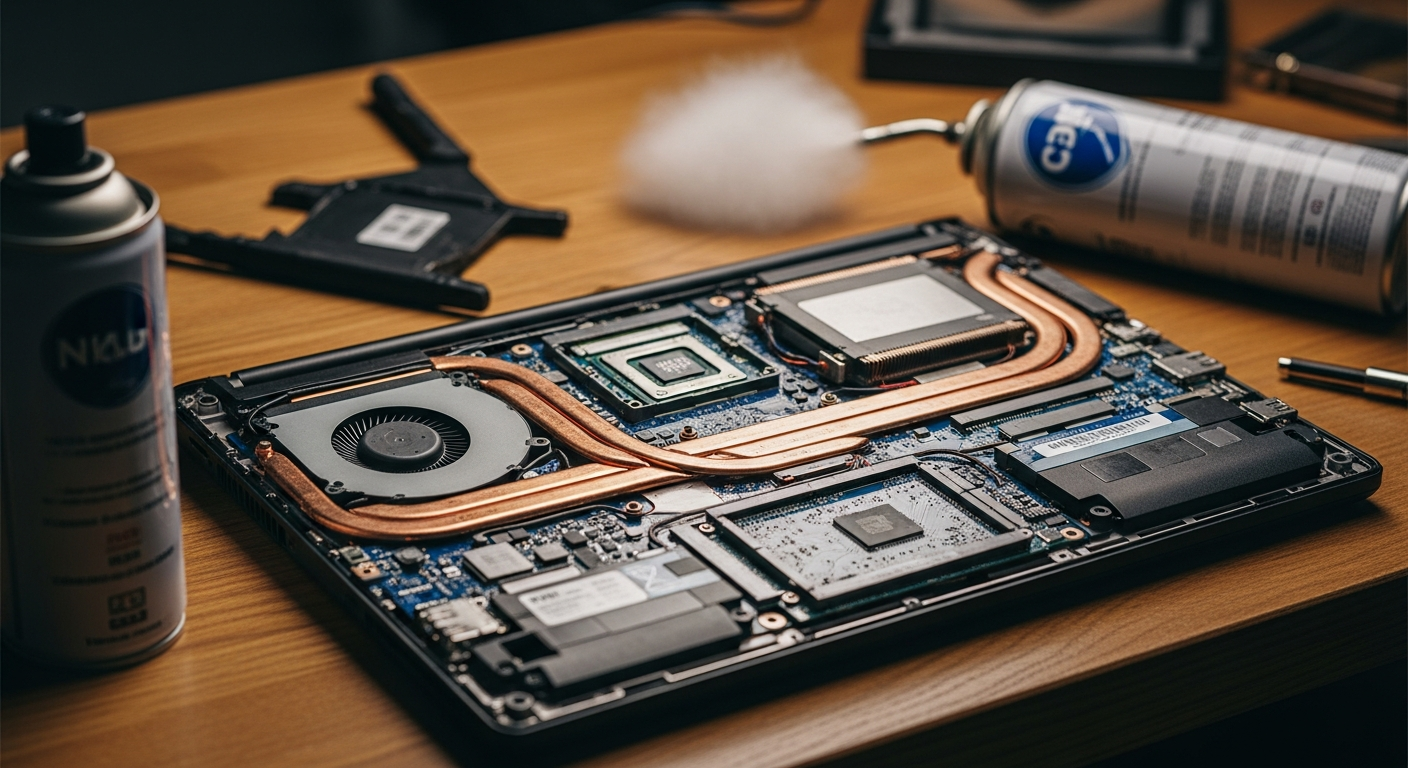
A laptop’s thermal system is a closed loop: the CPU and GPU generate heat, a copper heat pipe carries it to the heatsink fins, and a fan pushes room-temperature air through those fins and out the exhaust vents. Break any link in that chain and temperatures climb.
The six most common failure points, in order of frequency:
- Dust compacted inside the heatsink fins blocking airflow entirely
- Dust and debris clogging the fan blades and housing, reducing RPM under load
- Thermal compound between the chip and heatsink dried out after 3 to 5 years of use
- Chassis vents blocked by soft surfaces (beds, laps, soft cases)
- Background processes keeping the CPU at 60 to 80% utilization when the screen shows nothing running
- Fan bearing failure, which reduces RPM at full load
Age is the biggest predictor. A laptop used on a desk for 2 years typically has 8 to 12°C more headroom than the same model used on carpet or bedding. Dust accumulation rate roughly doubles on fabric surfaces.
How to Check Your Laptop’s Temperature Right Now
Before cleaning anything, get a temperature baseline. You need real numbers, not guesswork.
HWMonitor (CPUID, free) reads every sensor on the board, including per-core CPU temps, GPU die temperature, and SSD temperature. Install it, open it, and let it run for 10 minutes under your normal workload. Look at the “Max” column, not the current reading.
Core Temp is lighter and shows per-core load alongside temperature, useful if you want to confirm one core is consistently hotter than the others (a paste application problem).
HWiNFO gives the deepest sensor tree of the three, including VRM temperatures and fan RPM readings, which matter when you suspect a failing fan.
The table below shows what those numbers mean:
| Component | Idle (no load) | Normal load | Throttle / Danger | Action needed |
|---|---|---|---|---|
| CPU | 30 to 50°C | 65 to 85°C | 95 to 105°C | Above 95°C sustained: clean vents, repaste |
| GPU (dedicated) | 35 to 50°C | 70 to 85°C | 95 to 100°C | Above 90°C sustained: clean heatsink fins |
| SSD (NVMe) | 30 to 45°C | 50 to 65°C | 75°C+ | Above 70°C: check drive placement, add thermal pad |
| Note: AMD Ryzen CPUs report a “Tctl” offset up to 10°C above actual die temp. Check “Tdie” in HWiNFO for true temperature on Ryzen systems. | ||||
Clean the Vents and Fan (The Fix That Works Most Often)
If your laptop is 2 or more years old and has never been opened, start here. A 5-minute cleaning session fixes overheating in roughly 60% of cases.
You have two options depending on your comfort level with disassembly.
External vent cleaning (no tools needed)
Hold a can of compressed air (Falcon Dust-Off or equivalent) 2 to 3 cm from each vent opening. Use 1 to 2 second bursts, not sustained blasts. Tilt the can upright to prevent propellant discharge. Do this outdoors or over a trash can. You will see dust eject from the opposite vents on a moderately dirty machine.
This clears surface accumulation but does not reach the compacted dust mat sitting directly against the heatsink fins. For that, you need to open the bottom panel.
Internal fan cleaning (bottom panel removed)
Most modern laptops require only a Philips PH0 or PH1 screwdriver to remove the bottom panel. Once inside, use compressed air to blast through the heatsink fins from the fan side toward the exhaust vent. Hold the fan blades stationary with a fingertip while blasting; spinning the fan by air pressure can damage the bearing. The full process is covered in the guide on how to clean your laptop fan.
After cleaning, temperatures at full CPU load typically drop 10 to 20°C on machines that had visible dust accumulation.
Fix Your Working Surface and Airflow
A free fix that cuts idle temps by 8 to 12°C: stop using the laptop on soft surfaces. Fabric compresses the bottom intake vents completely. The fan spins at maximum RPM trying to pull air that cannot enter.
Use the laptop on a hard, flat surface. Laptop stands that prop the rear of the chassis up by 15 to 20 degrees improve passive airflow through the bottom panel and reduce CPU temps by 5 to 8°C under sustained load, according to repeated measurements published by Notebookcheck’s thermal testing.
Cooling pads with active fans (Havit, Klim, Thermaltake Massive) add another 3 to 7°C of relief by pre-cooling the intake air. They are a genuine tool, but position them after cleaning and paste replacement in your priority list, not before.
Replace the Thermal Paste
Thermal compound has a service life of 3 to 5 years under normal operating temperatures. After that, it dries, cracks, and introduces air gaps between the CPU die and the copper heat pipe contact plate. Those air gaps are catastrophic for heat transfer.
Replacing it requires: a PH0/PH1 screwdriver, 91%+ isopropyl alcohol, lint-free wipes, and a quality thermal compound. Thermal Grizzly Kryonaut (non-conductive, 12.5 W/mK) is the standard recommendation for most laptops. Conductonaut (liquid metal, 73 W/mK) is only appropriate for experienced users because it is electrically conductive and will damage components if it contacts PCB traces.
For most laptops, apply a small rice-grain amount of Kryonaut centered on the CPU die. The heatsink contact plate distributes it on reassembly. Overcautious users apply too much, which is worse than too little because excess paste reduces contact pressure.
Typical temperature drop after repasting: 15 to 25°C under full load on a 4 to 5 year old machine.
Reduce CPU Voltage with ThrottleStop
Undervolting reduces the voltage supplied to the CPU, which cuts heat output without reducing performance. The CPU still runs at full clock speed; it just generates less heat doing it.
ThrottleStop (unclewebb, free) is the standard tool for Intel CPUs. Open it, click FIVR, and reduce the CPU Core and CPU Cache offsets in increments of -25mV. Test stability with a 15-minute Cinebench R23 run after each adjustment. A stable -100mV to -150mV undervolt is achievable on most Intel 8th to 13th gen processors and yields 10 to 20°C reduction at full load.
AMD Ryzen laptops expose similar controls through AMD Ryzen Master or BIOS Curve Optimizer settings. The principle is identical.
Note that Intel began locking voltage controls on 12th gen (Alder Lake) and later processors at the BIOS level on many OEM laptops. If ThrottleStop shows the FIVR option greyed out, your BIOS has that lock enabled. Check if a BIOS update from your manufacturer unlocks it before assuming it is permanently unavailable.
Cut Background CPU Load
Open Task Manager (Ctrl + Shift + Esc), sort by CPU column descending, and watch it for 2 minutes. Any process holding above 10% CPU at idle is a problem.
Common offenders on Windows 11 laptops:
- Windows Search indexing running continuously after a Windows Update
- Antivirus real-time scanning triggered by a large file sync (OneDrive, Dropbox)
- Browser tabs running JavaScript video or WebGL content in the background
- Scheduled tasks firing during the day (Windows Update, Malwarebytes scans)
For persistent background CPU pressure, set your Windows Power Plan to Balanced rather than High Performance. High Performance keeps the CPU at maximum frequency even at idle, generating heat with no benefit. Balanced lets it drop to lower P-states when the workload does not demand full speed.
If you need to address other performance-related habits alongside temperature, the full checklist to fix a slow laptop covers the same process audit in more depth.
When the Fan Itself Is Failing
A fan with a worn bearing produces an audible grinding or rattling sound at startup or under load. In HWiNFO, look at the fan RPM reading during a CPU stress test. A healthy laptop fan reaches 3,000 to 5,500 RPM at full load depending on the model. A reading below 2,000 RPM at maximum thermal load, combined with high temperatures, points to a mechanical fan problem, not a software or paste problem.
Fan replacement on most consumer laptops is a 20 to 30 minute job requiring the PH0/PH1 screwdriver and a replacement unit sourced from iFixit or the manufacturer’s parts portal. Costs range from $15 to $45 for most models. Search your exact model number plus “fan replacement” on iFixit for a model-specific guide with step-by-step photos.
If the fan runs at full speed constantly (even at 45°C idle) but temperatures remain high, the fan itself is fine. The problem is upstream: clogged heatsink fins or a dead thermal interface. Work back through the earlier steps.
Cool Down an Overheating Laptop Fast
- Save your work and close all open applications immediately.
- Move the laptop to a hard, flat surface and away from direct sunlight or heat sources.
- Open Task Manager and kill any process using more than 15% CPU that you do not recognize.
- Switch the Windows Power Plan to Power Saver temporarily (Start > Settings > Power).
- Use compressed air on the external vents to dislodge surface dust accumulation.
- If you have a cooling pad, connect it and position the laptop centered over the fans.
- Allow 10 to 15 minutes for the chassis to cool, then recheck temperatures in HWMonitor before resuming heavy workloads.
Frequently Asked Questions
What temperature is too hot for a laptop CPU?
A laptop CPU above 95°C under sustained load is operating in the danger zone. Most Intel and AMD mobile processors begin thermal throttling between 95°C and 100°C and will trigger an emergency shutdown if the temperature reaches 105°C. Idle temperatures above 60°C with no programs open indicate a blocked airflow or paste problem that needs attention.
Can overheating damage a laptop permanently?
Yes. Sustained operation above 100°C degrades solder joints on the CPU package, accelerates electromigration in the chip die, and can cause GPU or CPU failure over months. SSD flash cells also degrade faster above 70°C. A single shutdown from overheating is unlikely to cause permanent damage, but chronic overheating over weeks shortens component lifespan measurably.
How often should I clean my laptop fan?
For a laptop used on hard surfaces in a clean environment, a full internal cleaning every 12 to 18 months is adequate. Used on fabric surfaces or in dusty environments, clean every 6 to 9 months. A simple indicator: if the fan audibly spins faster than it did 6 months ago under the same workload, dust accumulation is already affecting thermal performance.
Does a cooling pad actually help with overheating?
Cooling pads with active fans deliver a measurable 3 to 7°C reduction in CPU temperature by improving intake airflow. They are not a substitute for cleaning or paste replacement but work well as a supplementary measure. Choose a pad where the fan positions align with your laptop’s bottom intake vents; misaligned fans provide minimal benefit.
Is undervolting a laptop safe?
Undervolting in software via ThrottleStop is safe and reversible. If the CPU becomes unstable from an undervolt that is too aggressive, it will either crash or reboot, and the settings reset on restart. Start at -25mV increments and run a 15-minute stress test before going lower. No hardware damage occurs from a failed undervolt attempt.
If your laptop still runs hot after working through every step above, check whether the chassis bottom panel has visible warping or a broken clip that prevents it from seating flat. Even a 2mm gap in a bottom panel bypasses the designed airflow path. Keeping the chassis clean inside and out is part of the same maintenance routine as learning to clean your laptop screen properly.