

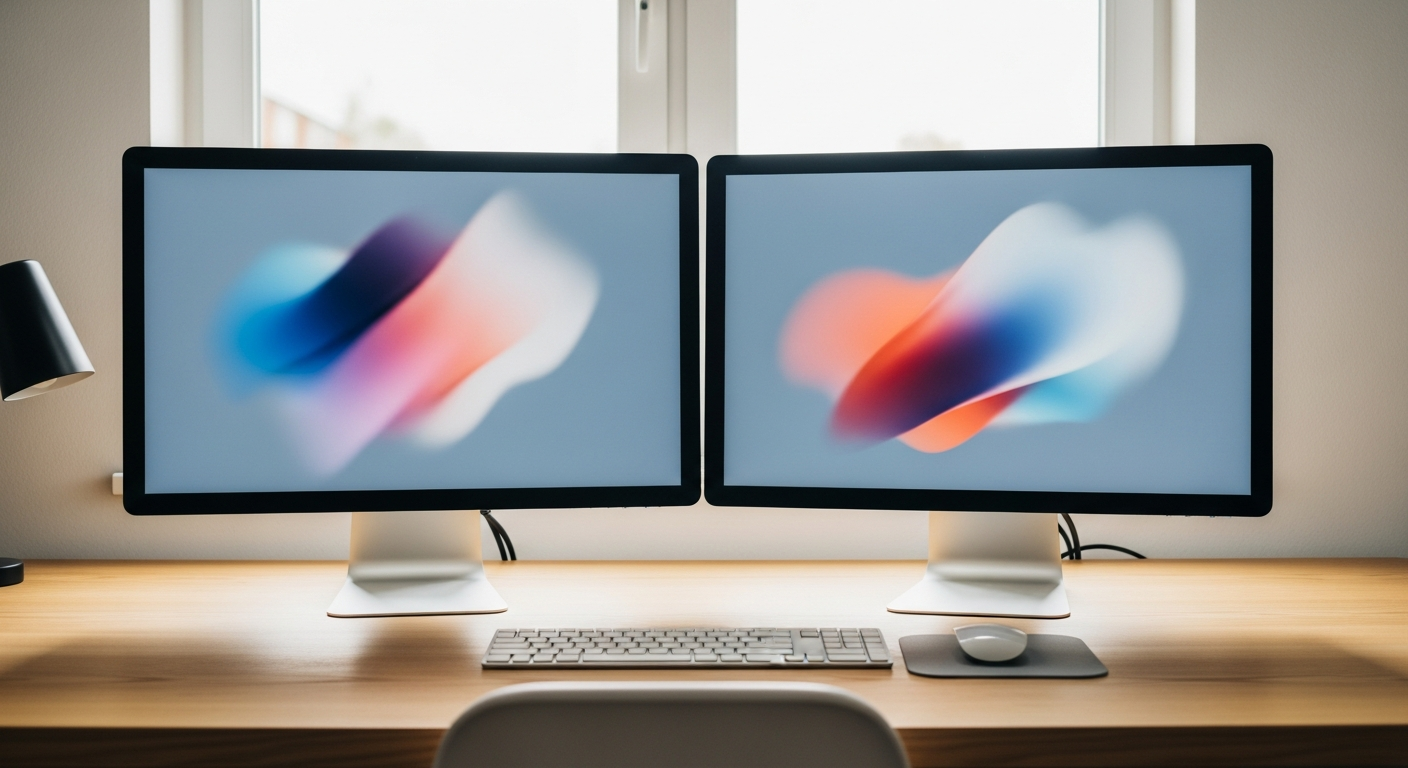
To set up dual monitors, connect a second display to your PC or laptop using HDMI, DisplayPort, or USB-C/Thunderbolt, then open Windows 11 Settings > System > Display and select Extend these displays. Drag the display thumbnails to match your physical layout, set your primary monitor, and match resolution and refresh rate on each screen.
Most people hit a wall at one of three points: wrong cable, wrong display mode, or a second monitor Windows refuses to detect. This guide covers all three, plus the real-world differences between connection types that most setup documentation glosses over.
If you have not already run through the basics of connecting an external monitor to your laptop, start there. This guide assumes you have at least one external display working and want to add a second.
What You Need Before You Connect Anything
Check your machine’s video outputs before buying a cable. A desktop with a discrete GPU typically has 3 or more ports: a mix of HDMI, DisplayPort, and sometimes USB-C. Laptops are tighter. A budget laptop may have one HDMI 1.4 port and nothing else. A business or creator laptop often has one Thunderbolt 4 or USB-C with DisplayPort Alt Mode alongside a full-size HDMI 2.0.
Two ports, two monitors. That is the baseline. If you have one port, you need either a DisplayPort Multi-Stream Transport (MST) hub or a DisplayLink dock. More on that below.
Also check your monitors. A 4K display at 60 Hz needs HDMI 2.0 or higher, or DisplayPort 1.2 or higher. Plug a 4K monitor into HDMI 1.4 and Windows will cap it at 30 Hz, which is unusable for anything that moves on screen. The table below maps each connection type to what it actually delivers.
Which Connection to Use
| Connection | Max resolution / refresh | Best for | Notes |
|---|---|---|---|
| HDMI 2.1 | 4K @ 144 Hz / 8K @ 60 Hz | Gaming monitors, TVs as second screens | Requires HDMI 2.1 cable and port on both ends. HDMI 2.0 caps at 4K/60 Hz. |
| DisplayPort 1.4 | 8K @ 60 Hz / 4K @ 144 Hz | High-refresh gaming, professional color work | Supports MST daisy-chaining. Preferred over HDMI for high refresh rates. |
| USB-C / Thunderbolt 3/4 | Up to 4K @ 120 Hz (Thunderbolt 4, via DP 1.4 tunneling) | Laptops with limited ports, ultrabooks | Must confirm USB-C port supports DisplayPort Alt Mode. Not all do. Thunderbolt 3/4 always support it. |
| DisplayLink dock | Up to 4K @ 60 Hz per display | Laptops with one video output | Uses USB bandwidth plus driver compression. Adds latency. Fine for productivity, not for 144 Hz gaming. |
| VGA (legacy) | 1080p @ 60 Hz (practical limit) | Older office monitors, legacy hardware only | Analog signal. No HDR, no high refresh. Avoid unless no other option exists. |
Connecting the Second Monitor
Power down neither the PC nor the monitor. Windows 11 supports hot-plugging on all modern ports. Run the cable from the GPU output or the dock to the monitor input. If you are using an adapter such as USB-C to DisplayPort, make sure it is an active adapter when your cable run exceeds 3 meters, or when the source port is USB-C without full DisplayPort Alt Mode support.
With a DisplayLink dock, install the DisplayLink Manager driver from displaylink.com before connecting. Windows will not recognize the additional displays without it. After driver install, connect the dock via USB-A or USB-C, then connect both monitors to the dock’s outputs.
If your second monitor shows a “No Signal” message immediately after connecting, try a different input on the monitor itself. Most monitors cycle through inputs automatically, but a few require a manual press of the input-select button.
Once both screens show a picture, open Windows 11 Settings and configure the layout before doing any real work. Default behavior is to duplicate the primary display, which is rarely what you want.
Configuring Dual Monitors in Windows 11
The sequence below gets both displays configured correctly from scratch.
- Press Win + I to open Settings, then go to System > Display.
- You will see numbered display thumbnails. If the second monitor appears but shows as a gray box labeled “Disconnected,” scroll to the Multiple displays section and click Detect.
- Click on the thumbnail for your second monitor to select it.
- In the Multiple displays dropdown, select Extend these displays.
- Drag the numbered thumbnails to match your physical monitor arrangement. If monitor 2 sits to the left of monitor 1 in real life, drag its thumbnail to the left. Windows uses this layout to decide where your cursor exits one screen and enters the other.
- Click the monitor you want as your primary display, scroll to Multiple displays, and check Make this my main display.
- Set the resolution for each monitor individually. Click each thumbnail, scroll to Display resolution, and choose the monitor’s native resolution. Running a display below its native resolution causes visible blurring.
- Click Apply after each change. Windows will ask to confirm or revert within 15 seconds.
Matching Resolution and Refresh Rate
Mismatched refresh rates cause more frustration than any other dual-monitor configuration issue. If one monitor runs at 144 Hz and the other at 60 Hz, each display can still run at its native rate in Windows 11. Unlike Windows 10, which sometimes forced both to the lower rate, Windows 11 manages independent refresh rates per display when the GPU supports it.
To set the refresh rate, go to Settings > System > Display, click a monitor thumbnail, scroll to the bottom, and click Advanced display. Select the refresh rate from the Choose a refresh rate dropdown. Always pick the highest rate your monitor’s panel supports at its native resolution.
If you do not see your expected refresh rate in the list, two causes cover nearly every case. The cable is the bottleneck: HDMI 1.4 cannot carry 4K at more than 30 Hz, so swap it for HDMI 2.0 or DisplayPort 1.2. Alternatively, the monitor is connected to the wrong output. On laptops and desktops with both integrated and discrete graphics, plugging into the motherboard’s video output instead of the GPU’s output limits available bandwidth.
For color accuracy, make sure both monitors use the same color profile if you are doing photo or video work. Go to Settings > System > Display > Advanced display > Display adapter properties, then the Color Management tab.
While you are adjusting displays, it is a good time to clean your laptop screen so both monitors start at the same brightness baseline visually.
Productive Layouts That Actually Work
Positioning matters more than most guides admit. For a two-monitor setup where one screen sees far more use than the other, place your primary display directly in front of you and the secondary monitor at a 30-degree angle to the side. Keeping your primary straight ahead reduces neck strain over an 8-hour day.
For coding or writing, where you split attention evenly, place both monitors side by side at equal distance and center your chair at the seam between them. Set both at the same height so your eyes travel horizontally, not diagonally.
Windows 11’s Snap Layouts (triggered by hovering over the maximize button on any window) work across both displays. You can snap a browser to the left half of monitor 1 and a terminal to the full width of monitor 2. PowerToys FancyZones adds more granular zone definitions if the built-in grid options are too rigid.
If you spend time fixing a slow laptop, having a second monitor dedicated to system monitoring tools while you work through diagnostics on the primary screen cuts down constant window-switching.
Second Monitor Not Detected: What to Check
When Windows sees only one display after you connect a second, work through these steps in order before assuming a hardware fault.
- Open Settings > System > Display, scroll to Multiple displays, and click Detect. Windows sometimes does not poll for new displays automatically after a hot-plug event.
- Reseat the cable at both ends. A DisplayPort cable with a damaged latch will show signal intermittently or not at all. Swap cables before assuming the port is bad.
- Update your GPU driver. On an NVIDIA GPU, open GeForce Experience and check for driver updates. On AMD, use AMD Software: Adrenalin Edition. On Intel integrated graphics, use Intel Driver and Support Assistant. An outdated driver is the single most common reason a second monitor refuses to appear after a Windows 11 feature update.
- If you are using a USB-C port, confirm it supports video output. Open Device Manager, expand Universal Serial Bus controllers, and look for a controller entry that includes “Thunderbolt” or “USB4.” A generic “USB 3.2 Host Controller” entry typically means video output is not supported on that port.
- Test the monitor on a different PC. If it shows “No Signal” on any machine, the panel itself or its power supply may be the issue.
- As a last resort, restart the PC with the second monitor already connected and powered on. Some older monitor firmware requires the display to be present at boot to register correctly.
One Video Output on Your Laptop: USB-C and DisplayLink
Many thin laptops ship with a single HDMI port and one or two USB-C ports, only one of which carries video. Running two external displays from this configuration requires a workaround.
If your USB-C port supports Thunderbolt 3, Thunderbolt 4, or USB4, a Thunderbolt dock such as the Dell WD22TB4 or CalDigit TS4 lets you connect two monitors plus peripherals through a single cable to the laptop. Both displays will run at full native resolution and refresh rate.
If your USB-C port is USB 3.2 only without DisplayPort Alt Mode, a DisplayLink dock is your option. DisplayLink technology compresses the framebuffer, sends it over USB, and decompresses it at the dock. The practical result is up to 4K at 60 Hz per connected display, with a small but measurable increase in CPU usage: typically 4 to 8 percent on a modern processor. For document editing and browsing, this is negligible. For video playback or motion-heavy work, the compression artifacts and latency become noticeable.
A third option, viable only for desktop systems with a multi-monitor GPU, is DisplayPort MST. If your monitor has a DisplayPort out port in addition to its input, you can daisy-chain a second monitor from the first, running both from a single DisplayPort 1.2 or higher output on your GPU. Each monitor must support MST explicitly. Check the spec sheet, not the product photos.
Frequently Asked Questions
Do I need a special cable for dual monitors?
You need a cable that matches the port version, not just the connector type. A cable labeled “HDMI” without a version number is likely HDMI 1.4, which limits 4K displays to 30 Hz. For 4K at 60 Hz or higher, use HDMI 2.0 or DisplayPort 1.2 cables. Check the version printed on the cable packaging before buying.
Why is my second monitor not detected in Windows 11?
The 4 most frequent causes: the cable is not fully seated, the GPU driver is outdated, the USB-C port does not support DisplayPort Alt Mode, or the monitor input is set to a different source. Open Settings > System > Display, scroll to Multiple displays, and click Detect first, then work through each cause in sequence.
Can a laptop run two external monitors?
Yes, if it has two video outputs or one Thunderbolt port. A Thunderbolt 3 or 4 port supports two 4K displays through a compatible dock. If the laptop has only USB 3.2 for the second output, a DisplayLink dock adds the second display at the cost of moderate CPU usage and slight compression.
Can two monitors run at different refresh rates?
Yes. Windows 11 supports independent refresh rates per display natively. Set each monitor to its native refresh rate through Settings > System > Display > Advanced display. The OS handles the difference without forcing the faster display down to the slower rate, which Windows 10 often did.
Does extend mode slow down my PC?
On a desktop with a discrete GPU, the performance impact of adding a second display is under 2 percent in standard desktop tasks. On a laptop, expect a 3 to 6 percent CPU load increase. A DisplayLink dock adds another 4 to 8 percent on top of that due to software compression. If the system feels sluggish after setup, check whether Windows switched your power plan to “Balanced” and restore it to “Best performance.”
Ready to go further? Browse the full Laptop Care and Setup series on DellOne2One for guides on port types, docking stations, and keeping your hardware running at full capacity year after year.