

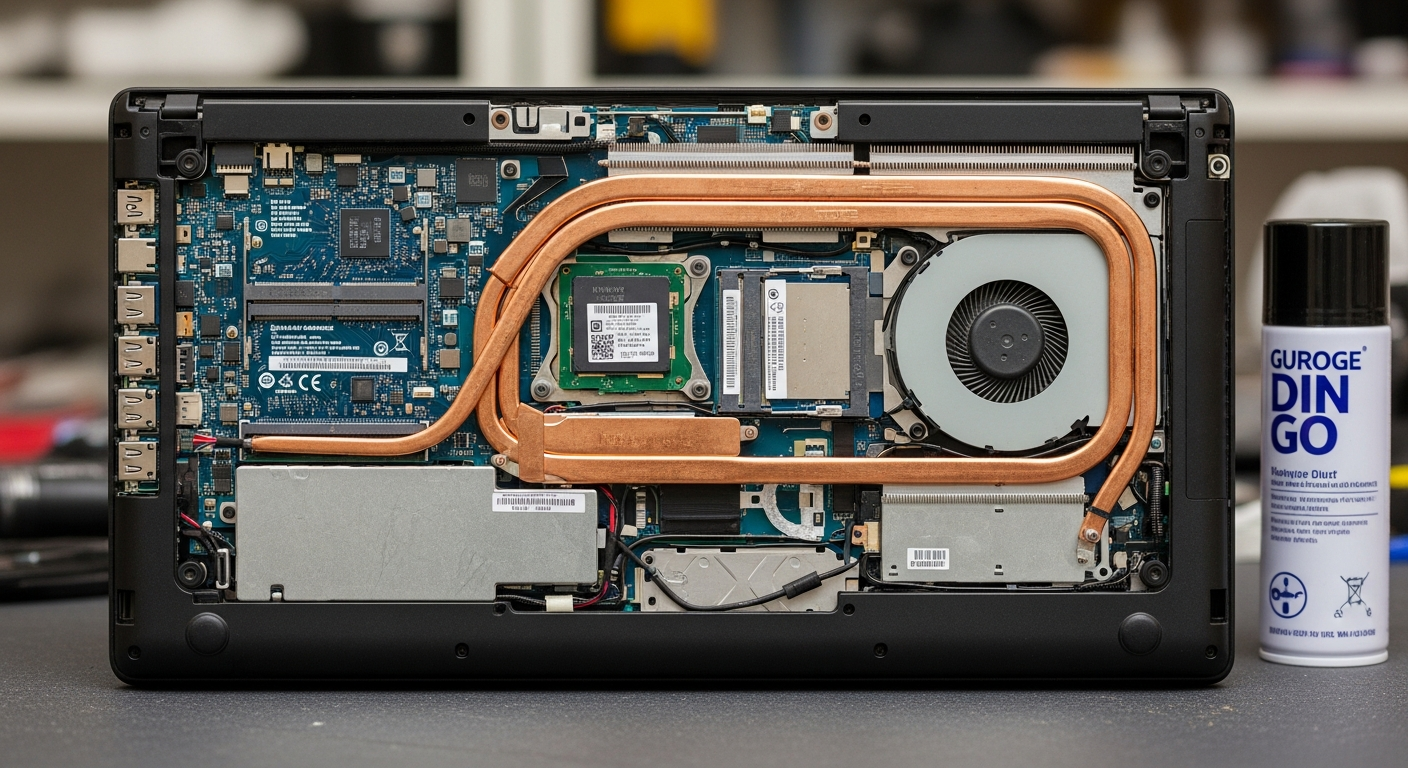
Cleaning a laptop fan takes 5 to 15 minutes, requires no special skills, and can drop your CPU temperature by 15 to 25 degrees Celsius. Compressed air pushed through the exhaust vents works for mild buildup. For a thorough clean, removing the bottom panel and brushing the heatsink fins directly gets you significantly better results. Either way, the job is doable at home with basic tools.
Dust doesn’t accumulate slowly and harmlessly. Laptop fans pull air through progressively narrower gaps until, at a certain point, they stop moving enough air to matter. The processor throttles itself to avoid heat damage, performance drops noticeably, and the fan spins faster to compensate, which accelerates wear. If your machine is louder than it used to be or runs hot under light workloads, the fan almost certainly needs attention. You might also want to fix a slow laptop caused by thermal throttling, because cleaning the fan is often the fastest single fix available.
Why Dust Destroys Laptop Cooling Faster Than You’d Expect
Most laptops use a copper heatpipe that carries heat from the CPU or GPU die to a heatsink, where a fan exhausts it through a vent. The heatsink is a block of tightly packed aluminum fins, typically 1 to 2 mm apart. Pet hair, fabric lint, and skin-cell debris compact into a felt-like mat across those fins. A mat just 1 mm thick can reduce airflow by 40 to 60 percent through those channels.
The result is a feedback loop. Reduced airflow raises CPU temperature. The fan speeds up. Higher fan speed pulls more debris into the same already-clogged fins. Temperatures rise further until the processor’s thermal protection kicks in and drops the clock speed to shed heat. That’s the point where a machine capable of running demanding tasks starts stuttering on basic workloads.
Cleaning every 6 to 12 months breaks this cycle before it starts. If you’re already dealing with laptop overheating, a thorough fan clean should be your first step before reapplying thermal paste or buying a cooling pad.
What You Need Before You Start
The tools depend on which method you use. For external cleaning through the vents, the list is short. For internal access, add a few more items.
Compressed air can (a standard 10 oz aerosol, sometimes labeled “canned air” or “dust-off”) is the core tool for both methods. Hold it upright when spraying, never at an angle, so propellant doesn’t discharge onto components. One can handles several cleanings.
A soft anti-static brush with natural or ESD-safe bristles lets you break up compacted dust before the air can dislodge it. Avoid synthetic bristles that generate static charge.
Isopropyl alcohol at 90 percent concentration or higher (not 70 percent rubbing alcohol from a pharmacy) evaporates cleanly without leaving residue. Use it on fan blades and heatsink surfaces, not on circuit boards unless you know what you’re doing.
For bottom-panel access: a PH0 Phillips screwdriver handles most laptop screws. Some ultrabooks use T5 Torx. Check your model’s service manual or the iFixit device page first, since using the wrong bit strips screw heads instantly. A plastic spudger or an old credit card helps pry the panel free without scratching the chassis.
An anti-static wrist strap grounded to the chassis or a metal surface is the correct precaution when touching internal components. If you don’t have one, touch a metal object to discharge before reaching inside.
Cleaning Without Opening the Laptop
This method works well for machines cleaned regularly (every 6 months) where dust hasn’t had time to compact into a solid mat. It also works when warranty seals make opening risky.
Shut down completely. Sleep mode leaves the fan spinning intermittently. Power off fully and unplug the charger.
Locate the exhaust vent, which is usually on the left side, rear edge, or bottom of the machine. This is where hot air exits. Position the compressed air straw at the exhaust vent and direct short 1 to 2 second bursts inward. You’ll see dust coming out the same vent or from nearby intake grilles. Work at a slight angle so the stream hits the fan blades.
Hold the fan still with a toothpick or a folded piece of paper inserted through the vent before each burst. Letting the fan spin freely under compressed air forces it past its rated RPM and can damage the bearings. This single step is what most guides skip, and it’s the one that causes the most accidental damage.
Do 4 to 6 short bursts, pause, let the loosened dust settle, then repeat. Don’t hold the can inverted or tilt it past 45 degrees.
Cleaning With the Bottom Panel Removed
This is the method that actually works for machines that haven’t been cleaned in over a year. The difference in results is not marginal. Direct access to the heatsink fins removes debris that compressed air through the vent can’t reach.
Before removing any screws, check two things. First, whether your laptop has a warranty void sticker over one of the screws. Opening the machine may affect your warranty depending on the manufacturer and your region. Second, check whether your model has the RAM, SSD, or battery covered by the bottom panel, since you want to know what you’re looking at before prying anything.
Work on a clean, flat surface. Use a PH0 Phillips screwdriver or T5 Torx as appropriate. Place the screws in a small bowl or on a piece of tape in the order you removed them, because on many laptops the screws are different lengths and go in specific positions. Photograph the bottom before removing anything if this is your first time.
Once inside, locate the fan and heatsink assembly. The fan is the round component with blades. The heatsink is the ribbed metal structure connected to it by a heatpipe. The dust mat almost always accumulates where the fan exhausts air into the heatsink fins.
Brace the fan blades with your finger or a toothpick to prevent rotation. Blow 2 to 3 short bursts of compressed air directly through the heatsink fins. The dust mat will usually come out in one piece. Use the soft anti-static brush to dislodge any material still stuck in the fin channels.
Wipe the fan blades with a cotton swab lightly dampened with isopropyl alcohol (90 percent or higher). Let it dry fully before reassembly, which takes less than 60 seconds at room temperature.
Reassemble in reverse order. Tighten screws snug, not overtorqued. Boot the machine and monitor temperatures in a tool like HWMonitor for the first 10 minutes of load.
What Not to Do
A few common mistakes cause more damage than the dust they’re trying to remove.
Do not use a vacuum cleaner. Household vacuums generate significant static electricity through their plastic nozzles. That static can discharge into the motherboard and kill components that were working fine before you started. This applies to handheld vacuums, robot vacuums, and any portable suction device. The only exception is an ESD-safe anti-static vacuum designed specifically for electronics, which costs over $300 and is not what most people have at home.
Do not spin the fan freely with compressed air. The fan motor acts as a generator when forced past its rated speed, which can feed voltage back into the motherboard’s power circuitry. Always brace the blades.
Do not use household sprays, canned WD-40, or water anywhere near the interior. Only isopropyl alcohol at 90 percent or higher on fan blades and metal surfaces. Nothing on PCBs unless you know the board is fully discharged and you’re using appropriate flux cleaner.
Do not blow compressed air while the laptop is powered on or in sleep mode. The fan spinning under its own power while you add external force stresses the bearing unnecessarily.
How Often to Clean Your Laptop Fan
Every 6 months is the correct cadence for most users in a normal home or office environment. If you have pets, the interval drops to every 3 to 4 months. Long-haired animals shed fiber that packs into heatsink fins faster than any other household debris source.
If your laptop sits on soft surfaces like a bed or couch, the intake vents press against fabric and the effective cleaning interval drops further, since you’re essentially vacuuming the surface you’re sitting on directly into the cooling system. A hard, flat surface is better for airflow and reduces the rate of debris ingestion by a meaningful margin.
Gaming laptops and any machine that runs sustained high loads need more frequent cleaning than a machine used only for email and documents, because heat cycles accelerate debris bonding to the fin surfaces.
Dirty Fan vs Failing Fan: How to Tell the Difference
Cleaning a fan that’s actually failing doesn’t fix anything and wastes the effort. The symptoms overlap, but the causes are different.
A dirty fan gets louder over time, runs at higher RPM under the same workloads as before, and causes temperatures to rise gradually across weeks or months. Cleaning it returns temperatures and noise to previous levels.
A failing fan shows different signs. You’ll hear a grinding or clicking noise that doesn’t stop after cleaning. The fan may spin at inconsistent speeds even under steady load. In some cases it stops completely and the machine shuts down within minutes of a demanding task. You can confirm a fan failure by running a hardware diagnostics tool (most laptops have one built into the BIOS or accessible at boot) or by watching the fan RPM in a monitoring tool while gradually increasing load. A healthy fan ramps RPM smoothly. A failing one stutters, drops to zero briefly, or makes mechanical noise at specific speeds.
Bearing wear is the most common failure mode. The bearing lubricant dries out after 3 to 5 years of continuous use, especially in machines that run hot. Replacement fans for most laptop models cost between $8 and $25 and are available from the manufacturer’s parts service or from suppliers like iFixit. If you can clean your laptop fan, you can replace it.
While you have the machine open, it’s also worth checking whether dust has collected on the keyboard vents or speaker grilles. The same time you spend inside is a good opportunity to clean your laptop screen and wipe down the chassis with a lightly dampened microfiber cloth.
Cleaning Methods Compared
| Method | Effort | Effectiveness | Risk |
|---|---|---|---|
| Compressed air (vents only) | Low (5 minutes) | Moderate; good for light buildup | Low if fan is braced; medium if not |
| Bottom panel + compressed air | Medium (15 to 20 minutes) | High; reaches heatsink fins directly | Low with ESD precautions |
| Soft brush + isopropyl alcohol | Medium (requires panel removal) | High; removes bonded debris compressed air misses | Low; no liquids on PCBs |
| Vacuum (not recommended) | Low | Poor; misses compacted dust in fins | High; static discharge risk to components |
| Professional service | None (drop-off) | High; includes thermal paste reapplication | Very low; costs $40 to $80 depending on service |
Clean Your Laptop Fan in 6 Steps
- Power off completely and unplug the charger. Wait 2 minutes for capacitors to discharge before opening the case.
- Remove the bottom panel using a PH0 Phillips screwdriver or T5 Torx. Photograph screw positions first. Set screws in order on a strip of tape.
- Ground yourself by touching the metal chassis or wearing an anti-static wrist strap before touching any component.
- Brace the fan blades with a toothpick or finger. Aim the compressed air can straw at the heatsink fins from 2 to 3 cm away and fire 2 to 3 short bursts. The dust mat should come free in one piece.
- Brush residual debris from the fin channels with a soft anti-static brush, then wipe fan blades with a cotton swab dampened with isopropyl alcohol (90 percent or higher). Let dry for 60 seconds.
- Reassemble, boot, and verify. Check CPU temperature at idle and under load in a monitoring tool. Expect idle temps 5 to 15 degrees Celsius lower than before the clean.
If your laptop is still running hotter than expected after a full fan clean, the thermal paste between the CPU die and the heatpipe may have dried out. That’s a separate repair, but the same bottom-panel access you already know covers it.
This guide reflects current laptop cleaning practices as of 2026. Specific screw types and panel layouts vary by manufacturer; always check your model’s service manual before opening the case.
Frequently Asked Questions
Can I use a vacuum to clean my laptop fan?
No. Household vacuums generate static electricity through their plastic nozzles, which can discharge into the motherboard and damage components. Use compressed air instead, always with the fan blades braced to prevent free spinning. An ESD-safe electronics vacuum is the only safe option, and most people don’t own one.
Does cleaning the fan void my laptop warranty?
It depends on the manufacturer and your region. Some laptops have a warranty void sticker over a bottom-panel screw. In the EU, opening the case generally does not void statutory consumer rights, but manufacturer warranty terms vary. Check your service manual or warranty documentation before removing the panel.
How do I know if my fan needs cleaning or replacement?
A dirty fan gets louder and causes temperatures to rise gradually. Clean it and the problem resolves. A failing fan makes grinding or clicking sounds that persist after cleaning, or it spins erratically under load. Monitor RPM in a hardware tool while stressing the CPU. Stuttering or mechanical noise at specific speeds indicates bearing wear requiring replacement.
How often should I clean my laptop fan?
Every 6 months for most users in a standard home or office environment. Every 3 to 4 months if you have pets, especially long-haired animals. Gaming laptops and machines used for sustained high-performance workloads need cleaning more often, because heat accelerates debris bonding inside the heatsink fins.
Can I clean my laptop fan without opening the case?
Yes. Aim short bursts of compressed air through the exhaust vent with the fan blades braced via a toothpick through the same vent. This works well for regular maintenance but does not remove compacted dust from inside the heatsink fins. For machines not cleaned in over a year, opening the bottom panel is significantly more effective.