

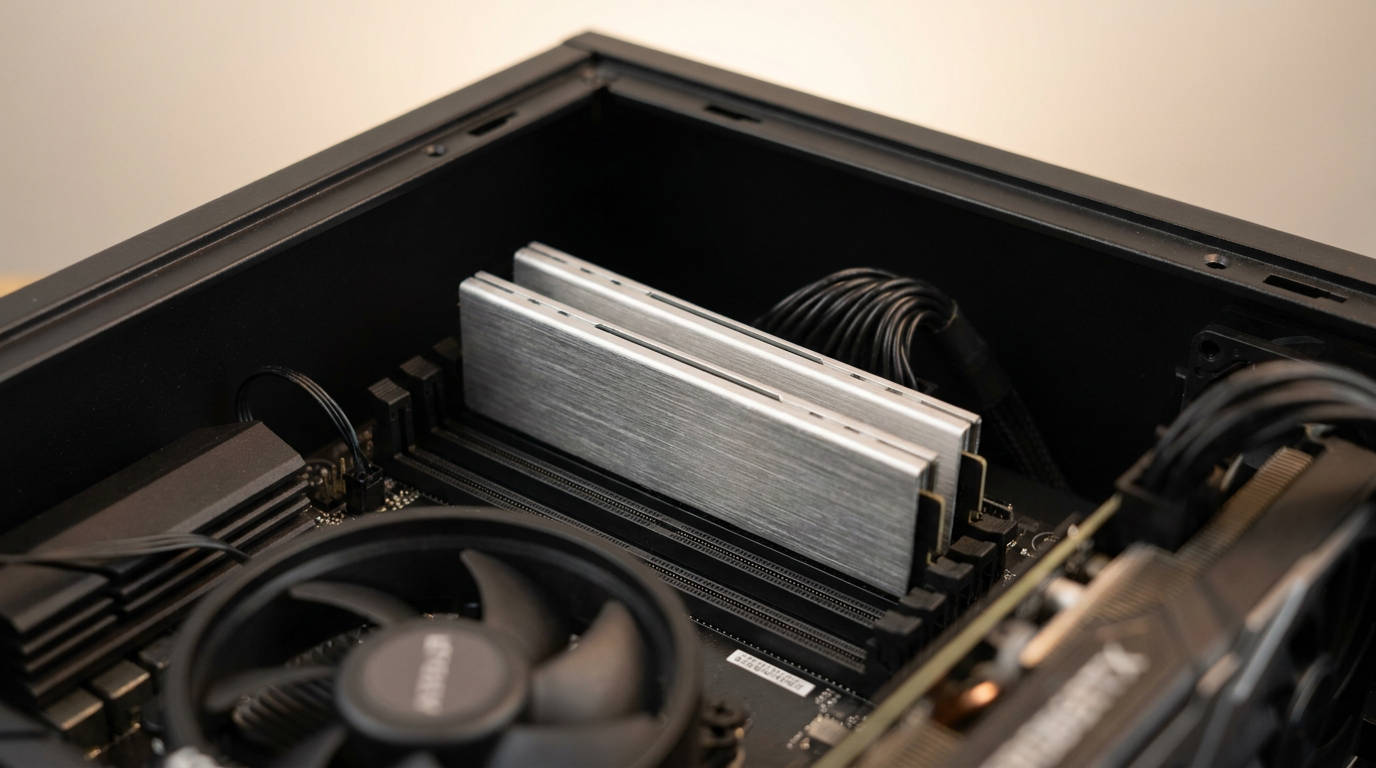
32GB of RAM is for anyone running more than one memory-heavy task at once: gaming with a stream client open, editing 4K footage, running a virtual machine, or keeping dozens of browser tabs open. If your day is browsing, documents, and video calls, 16GB already covers you. This guide breaks the decision down by what you actually do, not what looks impressive on a spec sheet.
Check Your Actual Memory Usage Before You Buy
Open Task Manager on Windows, click Performance, then Memory. Run your normal workload for twenty minutes and watch the “In use” number.
On a Mac, open Activity Monitor and check the Memory tab. The Memory Pressure graph matters more than the raw number: green means headroom, yellow or red means the system is already swapping to disk.
If usage consistently sits near your installed capacity, that answers the question. A five-minute check beats guessing from a spec sheet.
Gaming at 1080p vs 1440p: Where 32GB Helps and Where It Doesn’t
At 1080p with a mid-range GPU, the card is usually the bottleneck, not memory. Going from 16GB to 32GB rarely moves the frame rate on its own.
At 1440p and above, games hold more texture data longer, and you are more likely running a browser and overlay alongside the game. 32GB cuts stutter here by keeping the system from swapping memory to disk, not by boosting raw FPS.
1080p with nothing else open, save the money. 1440p with a full background stack, the headroom earns its keep.
Video and Photo Editing: When 32GB Stops Being Optional
Scrubbing a 4K timeline in Premiere Pro or DaVinci Resolve holds preview frames and cache data in memory while you work. Run out, and the software drops to disk-based caching, which shows up as stutter every time you scrub.
Large Lightroom catalogues behave the same way: every preview render competes for the same pool of memory.
Multicam projects and proxy-free 4K or 6K footage are where 16GB genuinely runs out. Standard 1080p cuts with a few layers rarely push past it.
Browser Tabs, VMs, and Background Apps: The Multitasking Reality
Each Chrome tab runs as a near-separate process, and extensions multiply that cost across every tab open. Thirty tabs with an ad blocker and a password manager can quietly eat several gigabytes on their own.
A virtual machine reserves a fixed block of memory the moment it starts, and that block stays locked whether the VM is busy or idle. Add a Docker container on top, and 16GB disappears before anything else opens.
32GB gives that stack room to breathe without closing tabs or shutting down a VM to keep the rest of the system responsive.
When 16GB Is Genuinely Enough
If your heaviest task is browsing, word processing, spreadsheets, and streaming video, 16GB covers it with room to spare. Windows 11 plus a dozen tabs rarely tops 10GB in real use.
Paying for 32GB in that scenario buys headroom you will never touch. Put the difference toward a faster SSD instead, where you will actually feel it.
Once 32GB is the right call, the platform question comes next. Our 32GB DDR5 RAM guide covers whether that capacity is overkill or the new baseline, and our DDR5 upgrade decision guide covers whether the platform jump is worth it. Adding RAM to an existing laptop? Our RAM upgrade guide covers the install.
Common Questions About Buying 32GB of RAM
Is 32GB of RAM overkill for gaming?
Not if you play at 1440p or higher with a background stack of browser, overlay, and voice chat. At 1080p with nothing else open, it usually is.
How do I know if I need 32GB instead of 16GB?
Check Task Manager or Activity Monitor while running your normal workload. If usage sits near capacity or the system shows memory pressure, upgrade.
Does 32GB of RAM speed up video editing?
It removes stutter that comes from disk-based caching once footage and cache data no longer fit in memory. It does not speed up export or render times.